
Mozilla Thunderbird: Its Advantages and How It Handles Email Rendering
Microsoft Outlook and Gmail (as part of Google Workspace) have long been among the leaders in the corporate email landscape. However, the market is not limited to industry giants alone and offers other solutions that may not be immediately noticeable but are definitely worth checking out.
Among those is the Mozilla Thunderbird email client, which serves as a free and open-source alternative. In this article, we’ll take a look at what Thunderbird is, what advantages it offers, and how email rendering works in its desktop and mobile versions.
What Is Thunderbird and What Are Its Advantages
Thunderbird is developed by the Mozilla Foundation, the creators of the popular Mozilla Firefox browser. The project is supported both by the core development team and the community, while remaining independent from commercial platforms and corporate ecosystems.
Thunderbird was first released in 2003 and has gained significant recognition over more than two decades, including in the corporate sector. Among the main reasons are its accessibility and its open development model.
Open-source email client. Mozilla Thunderbird is an open-source project. Changes to the core version are reviewed and accepted by the development team, while the source code remains publicly available. Anyone can study how it works, suggest improvements, or even adapt it for specific needs.
Why does this matter for businesses? Unlike many proprietary solutions that do not reveal their source code publicly, Thunderbird stays open for inspection and modification. Its behavior can be verified at the code level, which is important for companies with strict requirements for security and transparency.
Free distribution. Thunderbird is completely free: no subscriptions, no paid licenses, no mandatory connections to company cloud services or limitations on usage scenarios. Emails and settings remain under the user’s control and can be stored locally or on a chosen server.
For businesses, this means that the email client can be downloaded, installed, and configured (for example, integrated with internal email systems) without additional costs. This is especially relevant for teams with limited budgets or a large number of employees.
As for email rendering, Thunderbird displays HTML emails using the Gecko engine, the same one used in Firefox. It follows familiar Mozilla logic for parsing HTML and CSS and generally handles the basic structure of emails correctly.
At the same time, Thunderbird remains an email client, not a browser. Emails are not rendered like standard web pages, and some CSS properties, media queries, and behaviors work with certain limitations. These nuances are what we are going to examine in more detail.
Email Rendering Peculiarities in Thunderbird
Handling the max-width Property for Images
One of Thunderbird’s distinctive traits is how it processes images.
If an image is not wrapped in a link and its original size exceeds the displayed size, the client automatically applies the shrinktofit property so that the image scales to the container width. When hovering over the image, a zoom icon appears, allowing it to be viewed at full size:
To implement this behavior, Thunderbird adds the following rule:
max-width: 100% !important
This rule has higher priority and overrides constraints defined in the email code.
Let’s take a look at this example:
<img src="..." style="width: 100%; max-width: 30px;" />
Here’s how it works:
width: 100%sets the width to 100% of the containermax-width: 30pxlimits the maximum width to 30 pixels
However, Thunderbird’s max-width: 100% !important overrides the max-width: 30px limit. As a result, the image ignores the restriction and stretches across the full container width.
This may lead to layouts where images look very different from the intended design. For example, this is how images may look:
Yet this is how they were originally intended:

How to fix that? Actually, it’s rather easy. Use the width attribute instead of max-width to define exact dimensions:
<img src="..." style="width: 30px;" />
In this case, Thunderbird’s internal logic won’t interfere, and shrinktofit won’t affect the image size.
Dark Mode Behavior
As in the case with most email clients, Thunderbird supports dark mode. However, it processes colors based on its own set of rules.
In standard logic used by many other email clients, when it comes to dark mode:
- light backgrounds are converted to dark shades while preserving tone
- dark colors remain unchanged
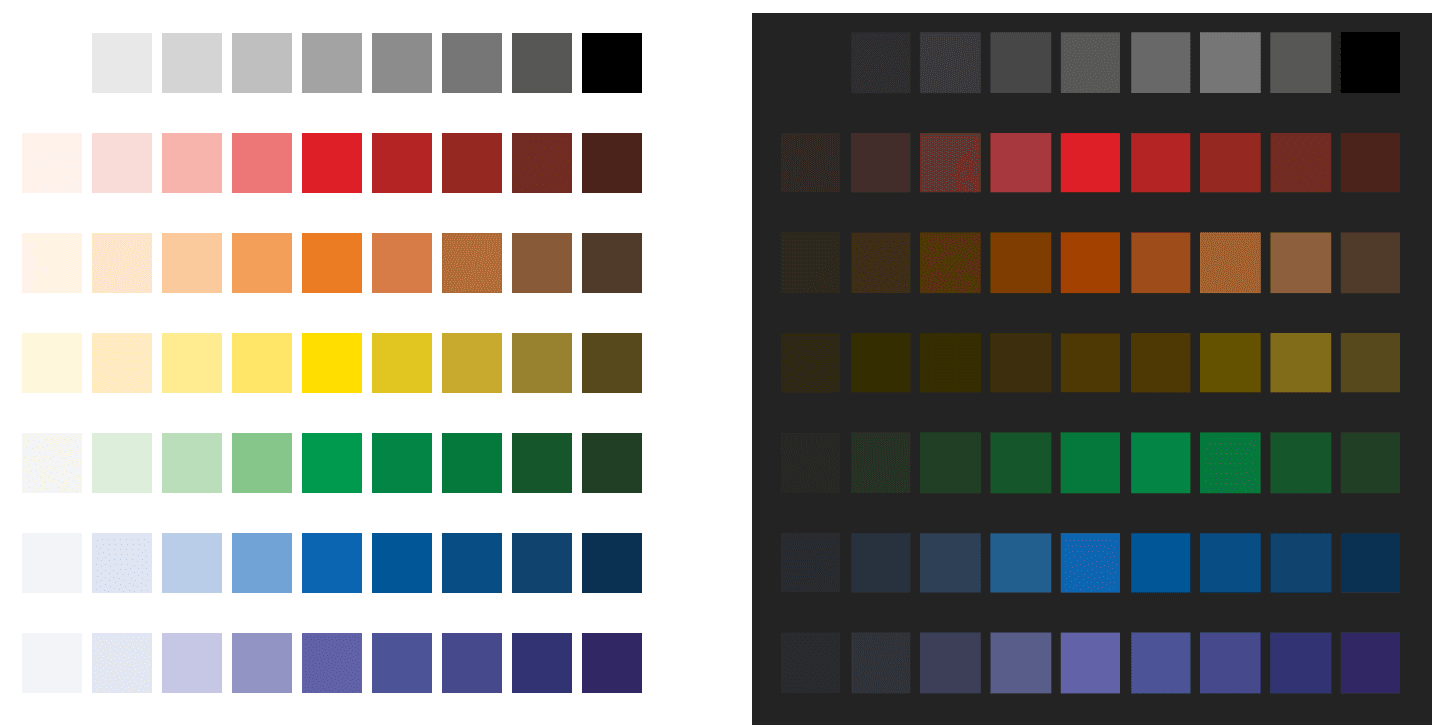
Thunderbird behaves differently: the bgcolor attribute is removed in dark mode. Background colors set via CSS (background-color) remain intact, but only if they are sufficiently dark. Otherwise, they are also removed:
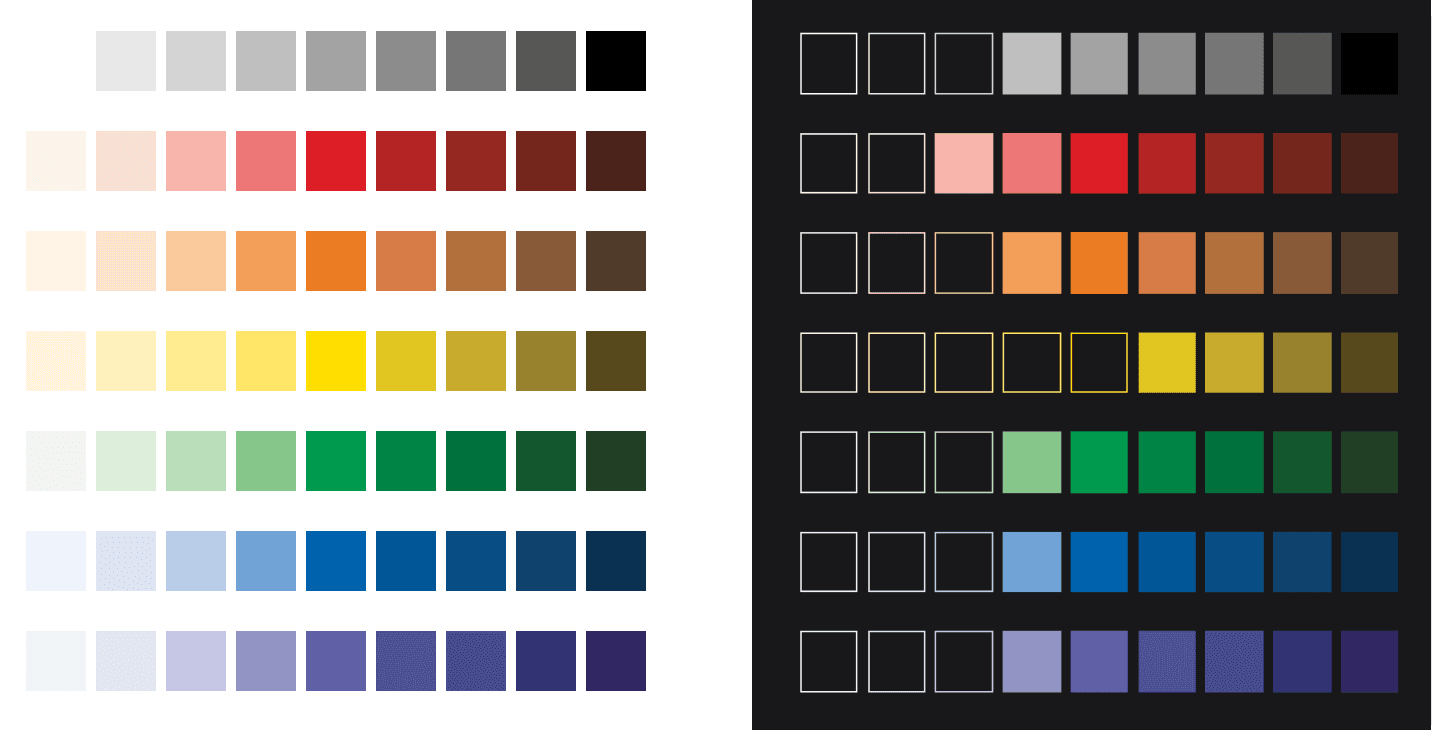
This most often affects buttons and banners. If a button has a light background, it may disappear in dark mode. In this case, a button may resemble a regular text link.
Here’s how it looks in practice. A button that is clearly visible in light mode may become barely noticeable in dark mode:
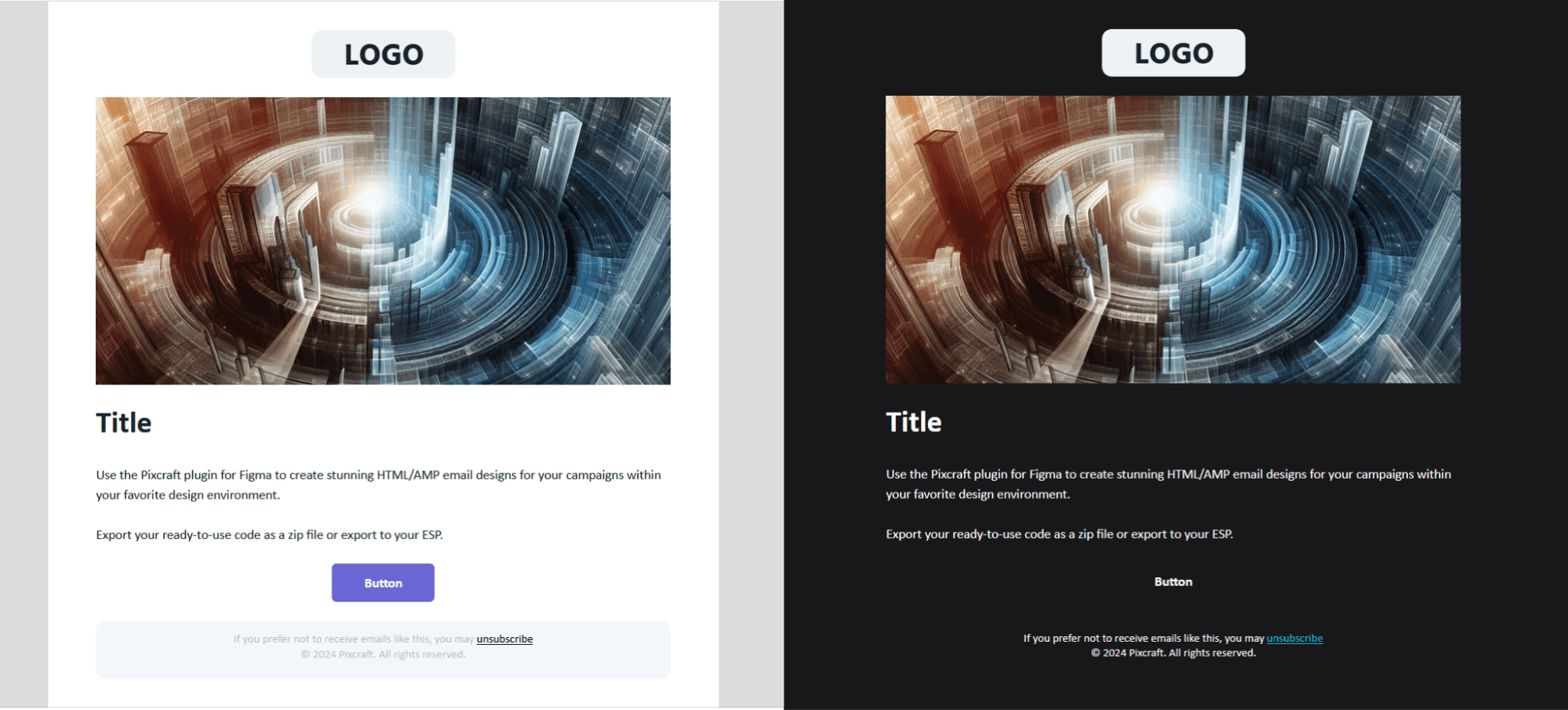
A button with a darker background, on the other hand, retains visibility:
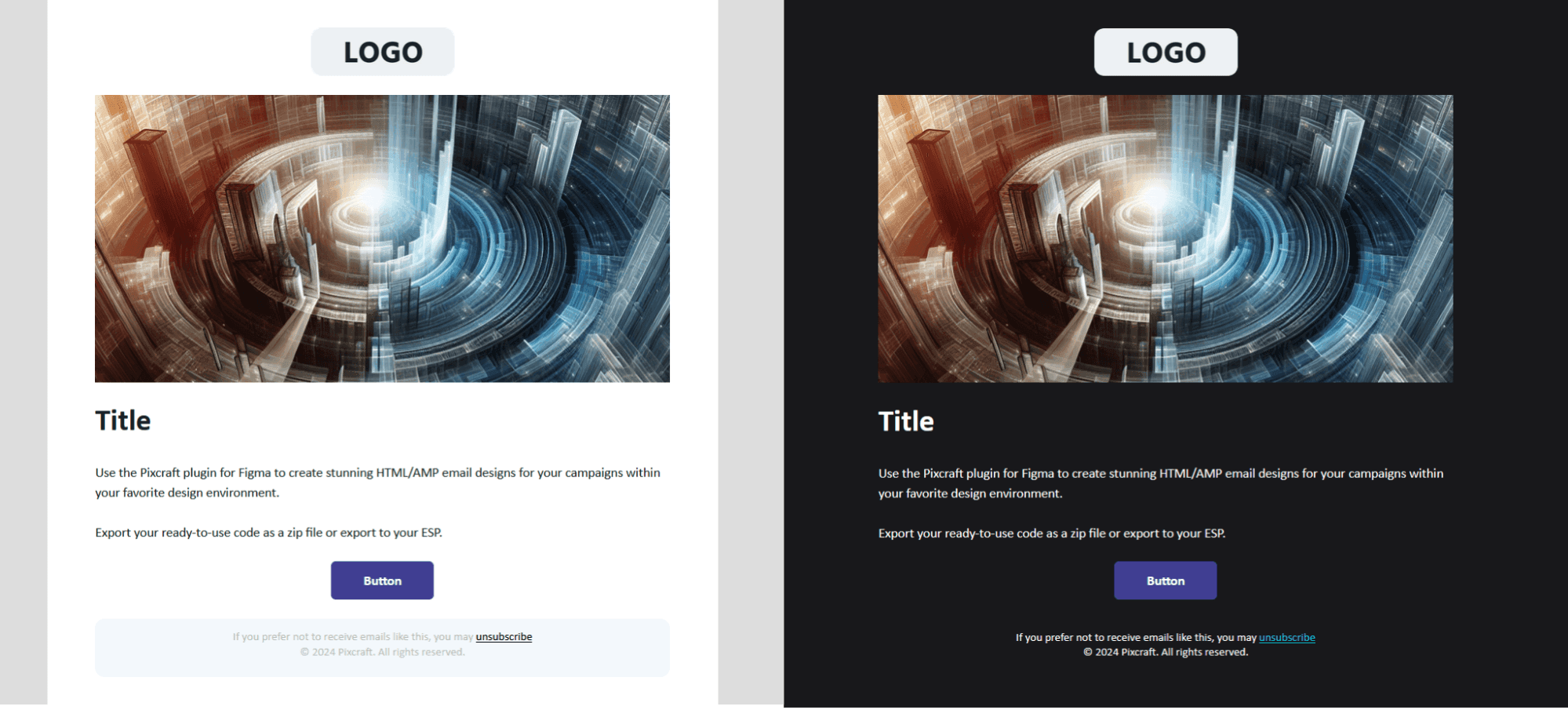
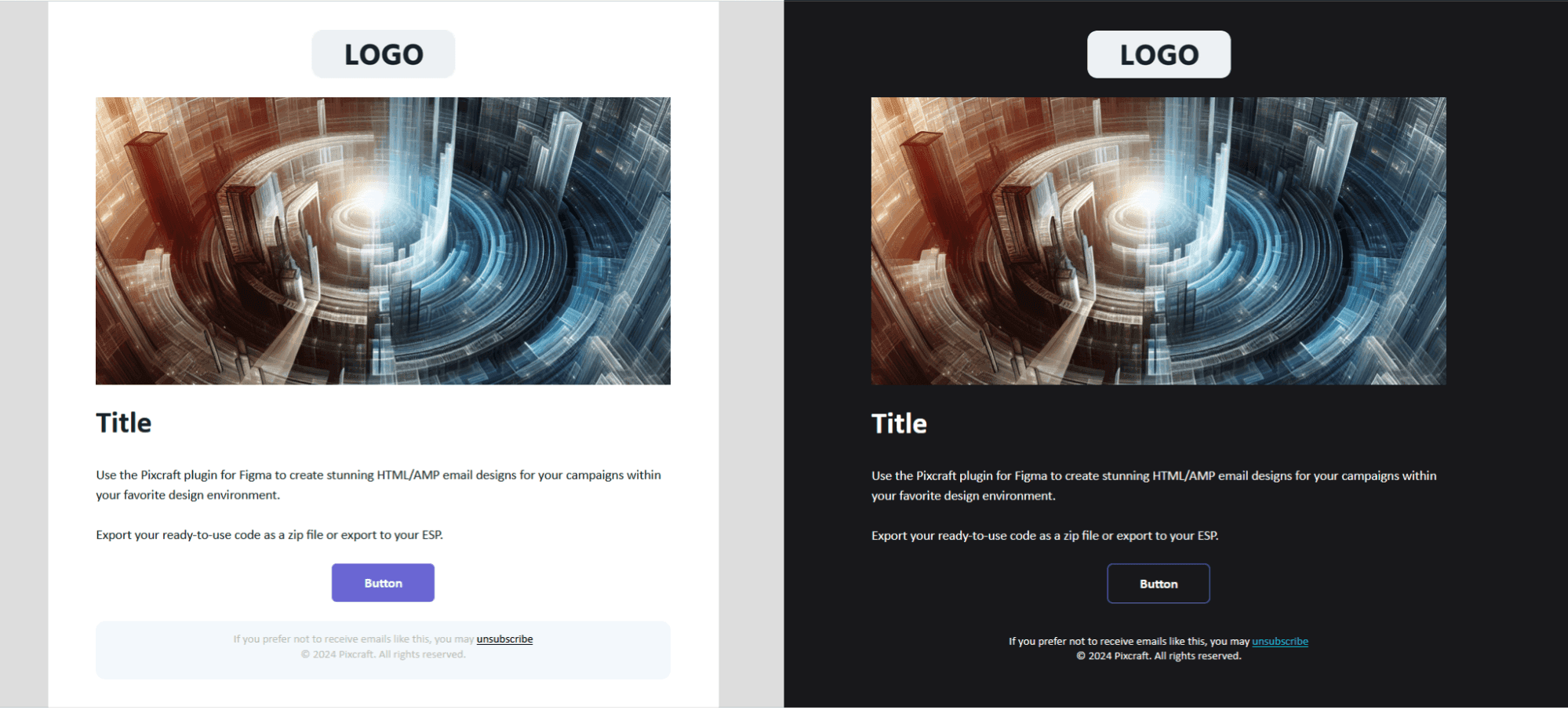
The solution here is to use darker fills for buttons or add a border (using the border property). In Thunderbird, borders are not recolored or removed, which helps maintain visual emphasis:
Color Rendering in the Mobile App
Since 2024, Thunderbird has also been available as an Android app. In terms of color rendering, the mobile version behaves more predictably than the desktop version.
Here, background colors do not disappear. If a color is too light, it is simply adjusted. The available color range aligns with, for example, the color range in the Gmail mobile app:
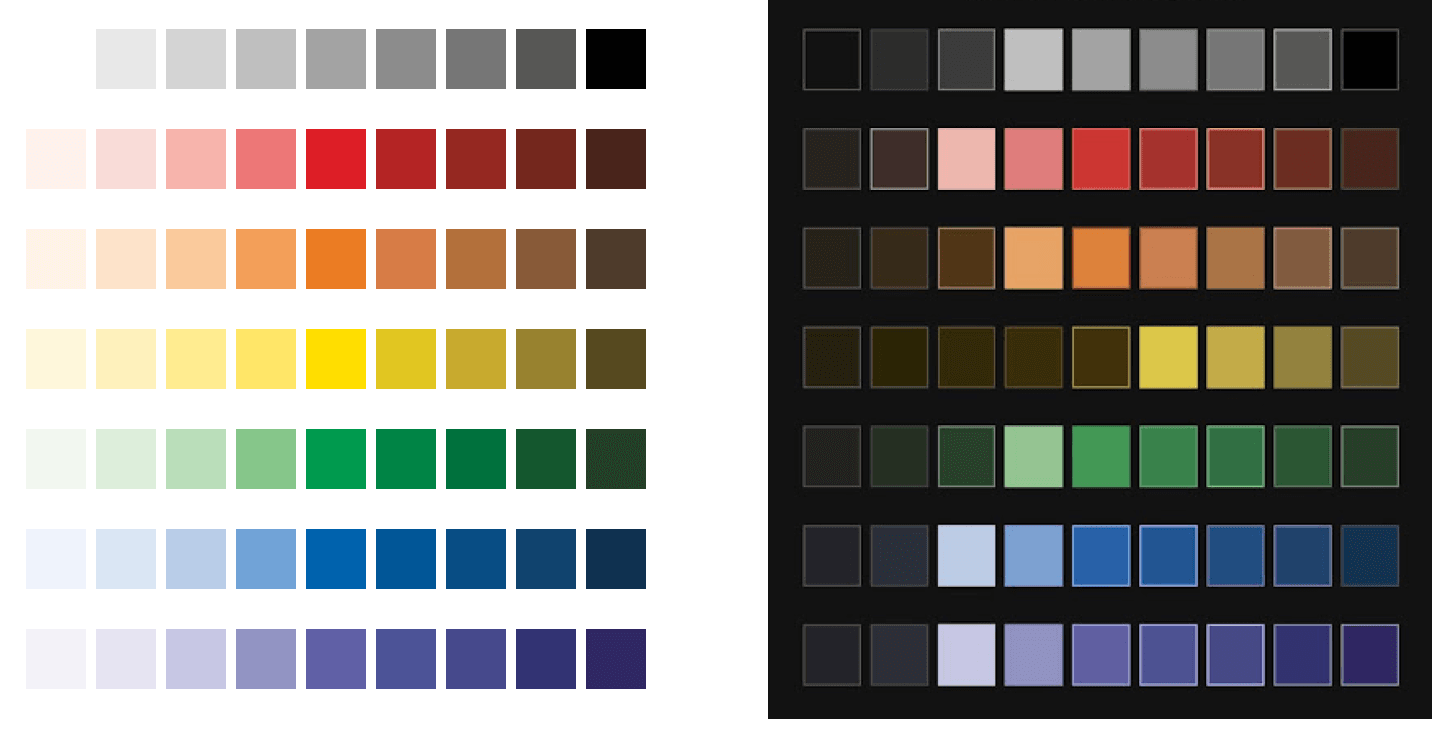
Image Loading and Email Clipping
In both desktop and mobile versions of Thunderbird, external images are disabled by default. They can be displayed for a specific email or enabled globally in the settings. Until then, images are not loaded in emails. This is why it’s important to pay attention to alt text: a short, precise description preserves context even when images are not displayed.
Another significant detail is that in the mobile version, emails are not always fully loaded when opened. Initially, only the header and part of the body may be displayed. The rest of the content loads only after tapping the button to view the full message.
This may affect tracking pixels. If these are placed at the bottom of the template, pixels may not load until the user requests the full email.
The solution is straightforward: test campaigns and adjust layouts if something doesn’t render as expected.
Conclusion
Thunderbird does not aim to replicate ecosystem-based solutions, and that is among its strong points. It remains open and flexible, fitting well in environments where control over infrastructure, transparency, and independence from external platforms matter.
Email rendering specifics require attention during development, but this applies to almost all email clients. Testing templates before sending is essential, especially if they target a specific service.
To keep your email layouts under control, use the Pixcraft email builder, which takes into account the specifics of different email clients. Try it yourself: sign up today and get 14 days for free to try it out.