
AMP Emails: How Their Rendering Differs Between Email Clients
When creating AMP emails, it’s important to consider not only markup correctness but also the environment in which the email is opened and rendered. Email clients may interpret the same mechanics differently, which affects the behavior of components within the email template.
In this article, we examine the differences in how AMP templates are displayed in two email clients — Gmail and Mail.ru — as well as the limitations that must be taken into account during email development.
States (amp-state) and Their Initial Values
States in AMP emails are used as variables that can store data and serve as a basis for conditional display logic. These values are substituted into attributes ([text], [class], and others) and are updated in response to user actions.
One important thing to note is that a value inside <amp-state> is applied only after the state is initialized via AMP.setState. If certain data needs to be shown immediately after the email is opened, it can be set as a regular element content or as a default attribute value:
1<span [text]="myItem.el">default value</span>
In this case, default value is displayed initially. After a user action, the value of myItem.el appears. The action itself can be arbitrary, including a purely formal one. For example:
1 2 3 4 5 6 7<amp-state id="myItem"> <script type="application/json"> { "el": "new value" } </script> </amp-state> <span [text]="myItem.el">default value</span> <button on="tap:AMP.setState({})">Button</button>
In Gmail, this process works according to the specification. When the button is clicked, the state is initialized and the <span> element displays new value.
Mail.ru, in contrast, doesn’t take the initial values defined in <amp-state> into account. Because of this, attributes that rely on default data will display null after initialization.
To work around this limitation, use setState instead of <amp-state> so that values are updated dynamically at the moment of user interaction:
1 2 3 4<button on="tap:AMP.setState({ myItem: { el: 'new value' } })"> Button </button> <div [text]="myItem.el">default value</div>
Expression Size Limitations
Although the AMP specification doesn’t define any limits for amp-bind, Mail.ru enforces a strict limit on expression length — no more than 100. The Pixcraft team encountered this limitation while developing the “Snake” AMP game. When clicking a button in the email, Mail.ru displayed the following error:
1amp-bind: Expression eval failed. Expression size (194) exceeds max (100)
At the same time, no such limitations were observed in Gmail.
A practical approach here is to design the email template with Mail.ru’s limit in mind: optimize calculations so that expressions stay within the allowed range.
AMP Carousel Behavior
<amp-carousel> is a convenient tool for creating interactive image galleries that behaves predictably in most AMP-supported email clients. However, in Gmail for iOS, tapping the navigation arrow causes the email to scroll upward, which breaks the viewing context. This issue can’t be fixed through <amp-carousel> settings, as it’s not related to the type, layout, or component dimensions.
A more reliable solution in this case is to build a custom carousel using amp-bind. With this approach, the email doesn’t scroll uncontrollably during interaction. Below is an example of such an AMP carousel that includes four slides:
1 2 3 4 5 6 7 8 9 10 11 12 13 14 15 16 17 18 19 20 21 22 23 24 25 26 27 28 29 30 31 32 33 34<style amp-custom> .carousel-wrapper { position: relative; width: 500px; height: 400px; overflow: hidden; } .carousel-container { display: flex; transition: transform 0.5s ease-in-out; } .slide-0 { transform: translateX(0%); } .slide-1 { transform: translateX(-100%); } .slide-2 { transform: translateX(-200%); } .slide-3 { transform: translateX(-300%); } .carousel-slide { min-width: 100%; flex: 0 0 auto; } </style> <div class="carousel-wrapper"> <div class="carousel-container" [class]="'carousel-container slide-' + carouselState.index"> <amp-img src="pic1.jpg" width="500" height="400" class="carousel-slide"></amp-img> <amp-img src="pic2.jpg" width="500" height="400" class="carousel-slide"></amp-img> <amp-img src="pic3.jpg" width="500" height="400" class="carousel-slide"></amp-img> <amp-img src="pic4.jpg" width="500" height="400" class="carousel-slide"></amp-img> </div> </div> <button on="tap:AMP.setState({carouselState: {index: (carouselState.index - 1 + 4) % 4}})"> Previous </button> <button on="tap:AMP.setState({carouselState: {index: (carouselState.index + 1) % 4}})"> Next </button>
The underlying logic here is as follows:
- the index of the current slide is stored in state;
- the slide container is shifted using
transform: translateX(...); - navigation is implemented via
AMP.setStateusing the “Previous” and “Next” buttons.
CSS Support
The way AMP CSS is interpreted differs noticeably between Gmail and Mail.ru. In particular, Gmail follows the AMP for Email specification very strictly, which manifests in several ways:
- Only a limited set of CSS properties is allowed. Anything that goes beyond the specification causes the email to fail validation.
- Pseudo-elements (
:beforeand:after) are prohibited. This affects common layout techniques such as decorative icons, list markers, overlays, and shadows designed using pseudo-elements. - Animations and transitions are heavily restricted at the rendering level. Only basic CSS animations, without complex timings or chained effects, are supported.
Mail.ru, in practice, applies looser requirements to CSS usage. Here:
- support for CSS animations is broader;
- fewer restrictions on decorative techniques and visual effects are present;
- some of the solutions that Gmail blocks or ignores during rendering are acceptable.
Because of this, when an email is developed with only Mail.ru in mind, CSS that Gmail rejects almost inevitably appears. Therefore, a more reliable strategy for working with AMP CSS looks like this:
- build the base layout in accordance with Gmail’s restrictions: only allowed properties, no pseudo-elements, minimal animations;
- verify that AMP renders consistently in Gmail;
- carefully expand the design for Mail.ru by adding extra animations and visual techniques on top of a layout already validated in Gmail.
Dark Mode in AMP Emails
Dark mode behavior depends on the email client as well as the platform. As a result, the same AMP template may look different in Mail.ru, Gmail on Android, and Gmail on iOS.
For instance, Mail.ru doesn’t automatically recolor AMP emails. Colors, backgrounds, and contrast are defined through CSS. Theme control is implemented using the meta tag:
1<meta name="supported-color-schemes" content="light dark">
CSS selectors are also used:
:root[data-ogsc]— dark mode;:root:not([data-ogsc])— light mode.
In Gmail for Android, the situation is different. When dark mode is enabled, AMP emails with light-theme designs are automatically recolored according to the general logic of converting a light layout into a dark one. If an AMP email is originally designed using a dark color scheme, Gmail on Android preserves its appearance. For this reason, dark designs tend to render more consistently here than light ones.
In Gmail for iOS, AMP emails aren't recolored automatically. On top of that, dark mode can’t be controlled via CSS. The email is displayed in its original color palette, regardless of system or Gmail app settings.
As a result, full support for both light and dark themes is available only in Mail.ru. When strict color requirements apply, it’s advisable to use a neutral or base dark design and to test the template separately for each email client.
Testing AMP Emails
Testing is the final step before sending an email campaign. It’s used to assess AMP code validity, CSS correctness, and how the email client reacts to errors.
Here, Gmail offers the Gmail AMP for Email Playground, which can be used to:
- check markup for compliance with the AMP for Email specification;
- detect unsupported components or attributes;
- send test emails to your own @gmail.com address.
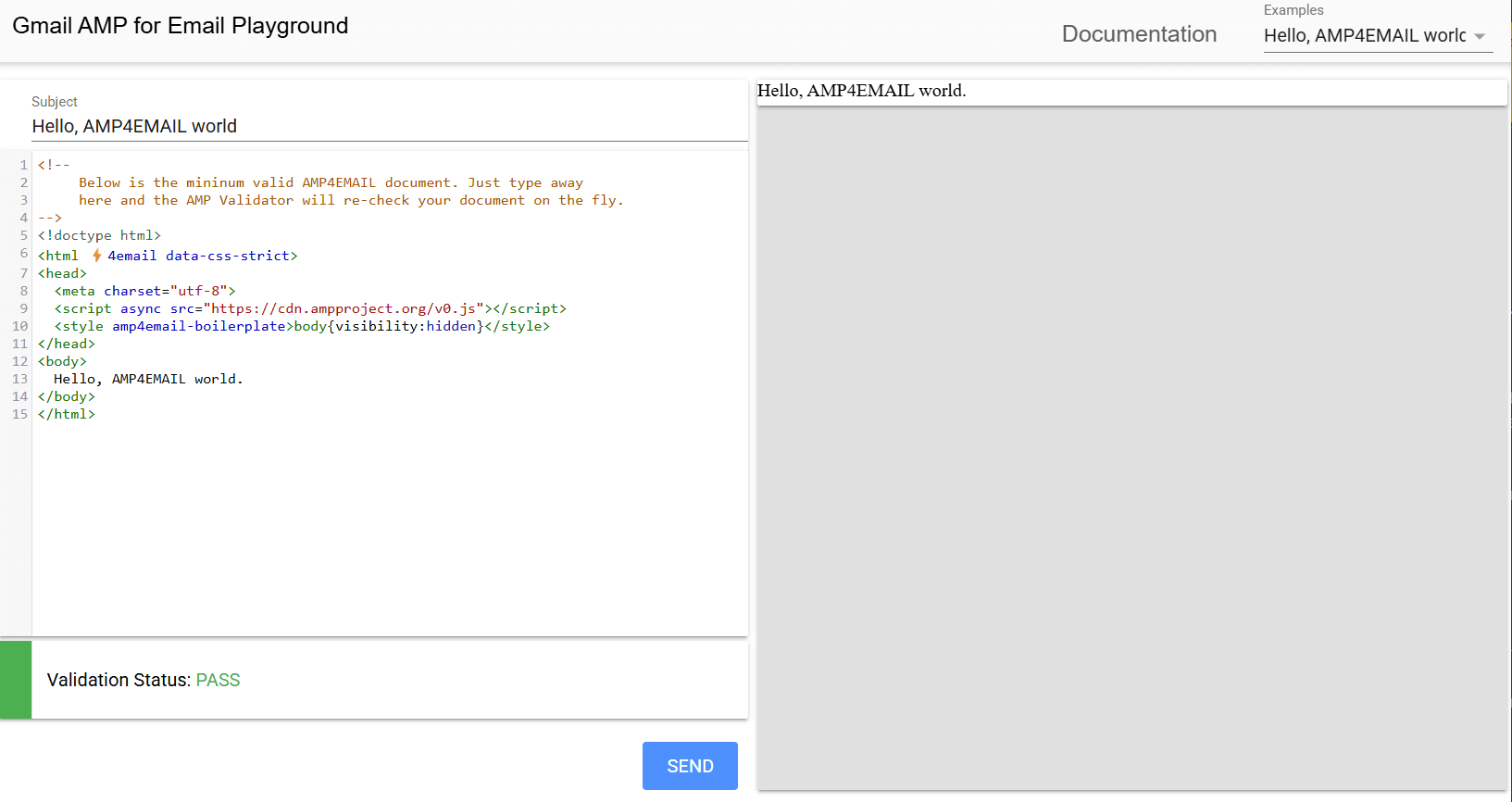
If the AMP version is displayed in the email client after sending, this means that the template has successfully passed the test. If the HTML version is shown instead, a notification appears above the email with an error code (for example, unsupported component) and a documentation link.
Mail.ru also provides its own Playground. It can be used to identify errors related to specification violations or internal client limitations and to send test emails to your own inbox.
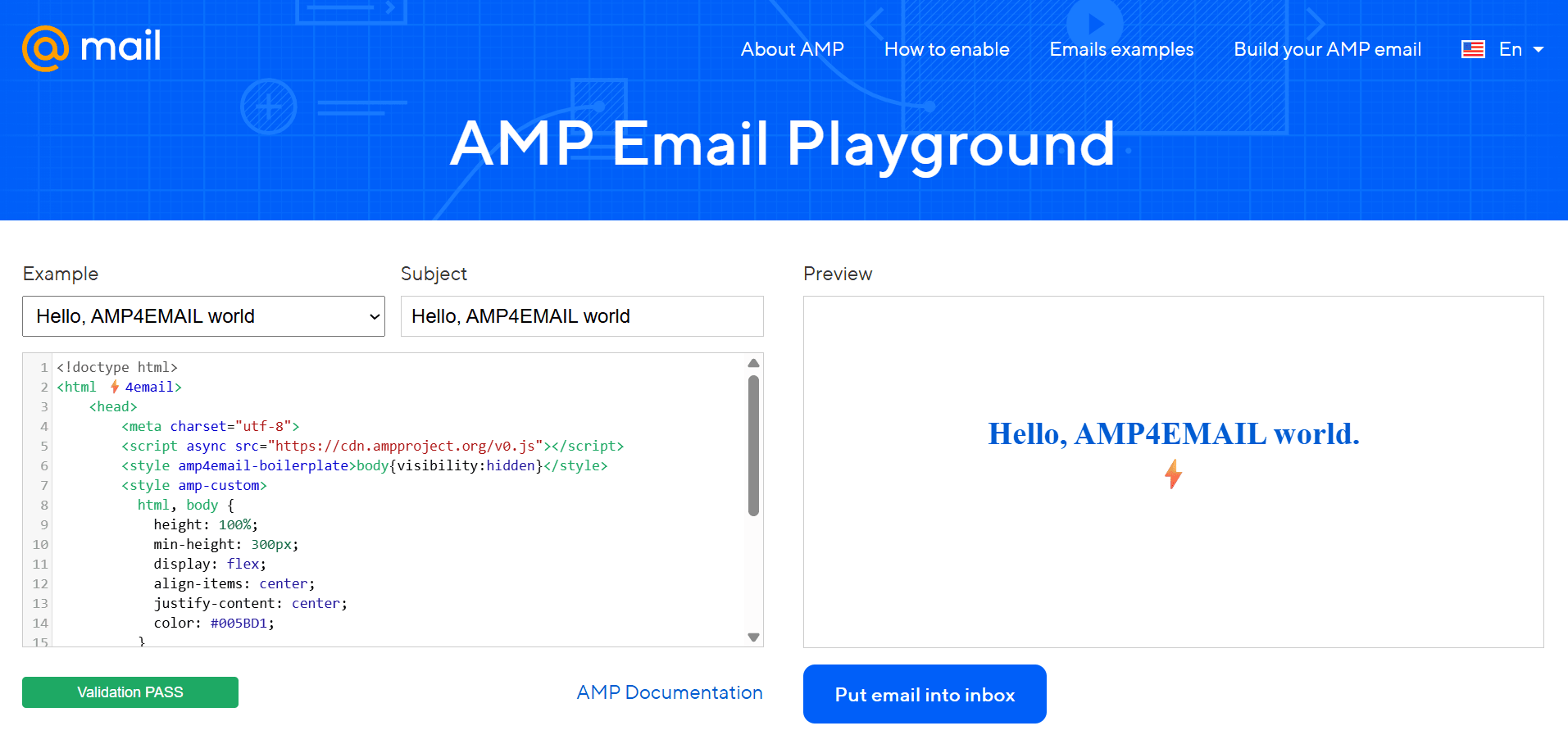
An optimal workflow involves testing in both clients:
- start with a general validation of the AMP code;
- next, test interactive elements and general behavior in Gmail;
- after that, perform a mandatory check of rendering and behavior in Mail.ru.
More information about preparing AMP emails for testing and sending is available in our detailed guide.
Conclusion
The behavior of AMP emails depends not only on how the code is implemented but also on the rules applied by the email client during processing. Taking into account the specifics of Gmail and Mail.ru makes it easier to maintain control over interactive elements and visual presentation. In this context, the differences between email clients form clear boundaries that shape the implementation of email campaigns.