
Animation in Email Newsletters: Guidelines for Reliable Display
People skim through emails within seconds, and any movement instantly draws attention. Even a simple yet well-placed animation can make a message feel more vivid.
At the same time, adding animation raises a lot of questions, including:
- What types of emails can be enhanced with animation?
- How to make an email bright and dynamic without overloading it?
- Will the element behave consistently across different email clients?
In this article, we’ll take a look at the possibilities and limitations of animation in newsletters, and how to work with it to achieve the best possible display quality in email campaigns.
How Animation Benefits Email
The main purpose of animated elements is to make a newsletter more expressive and engaging. Motion attracts attention more effectively than a static image and, when used wisely, strengthens the overall impression.
Animation fits a wide range of scenarios and email formats:
- Promotional emails. An animated banner can highlight the benefit and make an offer stand out visually. A countdown timer, in turn, pushes the reader to act fast while the promotion is still active.
- Onboarding. A short interface demo in a welcome email shows how the service works: which features are available, how they behave, and what to do next. A new user immediately sees the product in action and grasps its structure faster.
- Digests. If the message doesn't require a full-fledged dynamic product card, a compact animation can be used to highlight individual items. For instance, it might show a new product from several angles or draw attention to a discounted item.
- Service emails. Animated elements also work well in transactional messages. They can be used to illustrate order progress, for example, handover to a courier or delivery to a pickup point.
 Source: Really Good Emails
How to Add Animation to Email Newsletters
Two most common ways to add motion to emails are GIF and AMP. Understanding their specifics helps to choose the right option for a particular scenario.
GIF
GIF is the classic format for animated elements. It’s supported by most email clients and usually behaves predictably. Still, if you want GIFs in emails to work as intended, several important points must be taken into account.
- File size. For newsletters, short and lightweight GIFs are the most practical option. It’s generally recommended to keep the file size under 1 MB so that the message loads faster.
- Colors and detail. The format supports only 256 colors. Therefore, complex gradients and smooth transitions between frames lose quality during compression. For a clean result, it’s better to use simple shapes, backgrounds, and outlines.
- Alt text. This short text acts as a safety net when an element doesn't load because of a slow connection or filters in the email client. A concise description preserves the logic of the message and tells the reader what the contents of the animation are.
AMP
AMP expands the possibilities for building email templates by adding interactive elements. It can be used to create swipeable galleries, interactive surveys, and rich visual scenarios not available in classic HTML.
AMP also works with traditional GIF animation. Two components are used for this:
amp-img;amp-anim.
Both can handle GIF files, but amp-anim is a specialized component with one important advantage: the animation runs only while the element is visible on the screen. As soon as the user scrolls past it, amp-anim stops playback and reduces the load on resources, which is especially useful in long newsletters and on mobile devices.
You can also use a static placeholder image inside the component. It appears before the GIF loads and prevents an empty area in case of a slow connection or a heavy file.
The element supports CSS styling and fits into the layout like any other AMP component. Here is an example of amp-anim markup:
1 2 3 4<amp-anim width="500" height="400" src="animation.gif"> <amp-img placeholder width="500" height="400" src="placeholder.jpg"> </amp-img> </amp-anim>
How Animation Works in the Pixcraft Visual Editor
Adding an animated element to an email template in Pixcraft is as simple as inserting a regular illustration. Simply drag the “Image” primitive onto the canvas and upload a file from your device or specify a URL. The GIF becomes part of the email without extra actions and immediately appears in the layout.

After that, it can be configured in the same way as any other image. The panel on the right contains parameters that define its appearance and behavior:
- width and height;
- alignment, corner radius, and margins;
- border thickness, texture, and color;
- external link;
- alt text.
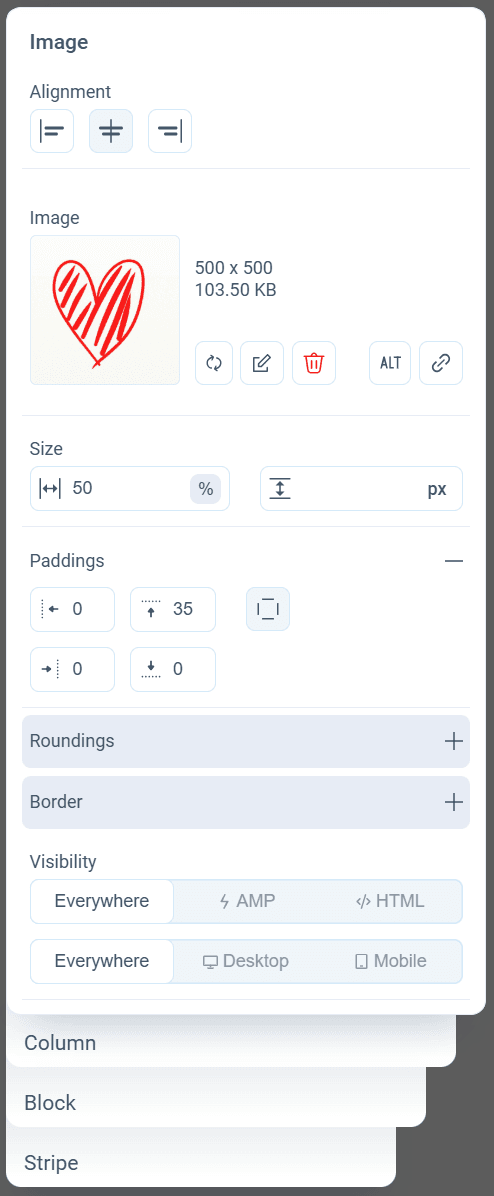
You can check how the element behaves under different conditions using the preview function. It shows how the email looks on desktop and mobile, as well as in light and dark mode.
Preview is especially important for animations with fine details that may blend into the background or disappear when scaled down. At this stage, you can spot such issues and adjust the image before sending the campaign.

It’s also possible to include AMP animations in email templates. For example, you can use the built-in “Carousel” component: a scrolling image gallery that supports various image formats, including GIF.
In addition, you can insert the required elements straight into the email code after building the main structure in the visual editor. To do this:
- export the AMP version of the template;
- open the file in a code editor;
- add the required AMP components to the email.
What to Keep in Mind for Animations in Emails
Compatibility with Outlook
Although GIFs usually work smoothly in most email services, some versions of Outlook for Windows may cause issues. Because rendering is handled by the Word engine, the animation freezes on the first frame and doesn’t play further.
In this case, fallback options are required:
- use conditional comments to replace the GIF with a static image;
- design the first frame as a complete illustration that conveys the necessary information such as the offer, promotion dates, or discounts.
Expressiveness and Balance
Animation can be functional or decorative. In the first case, it draws attention or makes the element more informative; in the second, it sets the tone and mood. And in both roles, it needs to remain appropriate.
This means the animation should:
- support the structure of the email instead of pulling attention to areas that aren't central to the message;
- preserve readability and clarity;
- avoid cluttering the layout or creating visual noise.
Limited Attention Span
People move through emails quickly and spend only a few seconds scanning the content. Under these conditions, complex, drawn-out animation often doesn't have time to unfold, and individual details go unnoticed.
Short and simple scenarios usually work better: a state change, a subtle appearance, a neat switch. The fewer objects move on the screen at once, the easier and more accurately the element is perceived.
Performance on Small Screens
Today smartphones are the primary way to read emails, and many mobile clients support animation playback. At the same time, limited screen space becomes a separate constraint.
Before sending the email, it’s worth checking whether:
- the animation keeps its aspect ratio;
- any text inside it remains legible;
- the overall meaning stays clear when the animation is scaled down.
In case of issues, animated elements need to be adapted specifically for the mobile version. For example, you may enlarge important details, simplify the graphics, or, in some cases, completely replace the animation with a static frame.
Is Video Supported in Emails (And Is It Worth Using)
Embedding video directly in an email may sound like an appealing idea, but only a few email clients, such as Apple Mail, support this technology. In most cases, a video inside the message simply won’t play: either nothing is shown in its place, or fallback content appears instead.
Because of this, a more reliable pattern is often used. A static frame with a play icon is inserted into the message. The user clicks on it and is redirected to a page with the video, for example, the brand’s website or a video hosting platform. This scenario is stable, but it involves switching to an external resource rather than inline playback.
 Source: Really Good Emails
If the goal is to simply add motion, emphasize a detail, or make the email more visually dynamic, regular animation is usually a more effective option.
Conclusion
Animation in emails shapes the impression that remains after reading. It’s important that the format, graphics, and small details work together as a coherent whole. Good animation doesn’t overshadow the email content; instead, it serves to support the main idea of the message. And that’s exactly where its true value lies.