
Background Images in Emails: How to Set Them Up Correctly
Background images make emails more expressive. You can place text, buttons, logos, and other elements over them, making the background part of the design that can set the tone of the email and emphasize its content.
At the same time, there are quite a few technical nuances regarding markup associated with email template backgrounds. Outlook for Windows presents the most challenges since it does not support most CSS properties due to the rendering engine specifics.
Let’s take a look at how background images work in emails and what you should keep in mind when configuring them.
How Background Images Work in Emails
In HTML, backgrounds are usually set with CSS using the background-image property. A background image in email code looks like this:
background-image: url('background.jpg')
By default, the image retains its original size, starts from the top-left corner, and repeats until it fills the entire block.
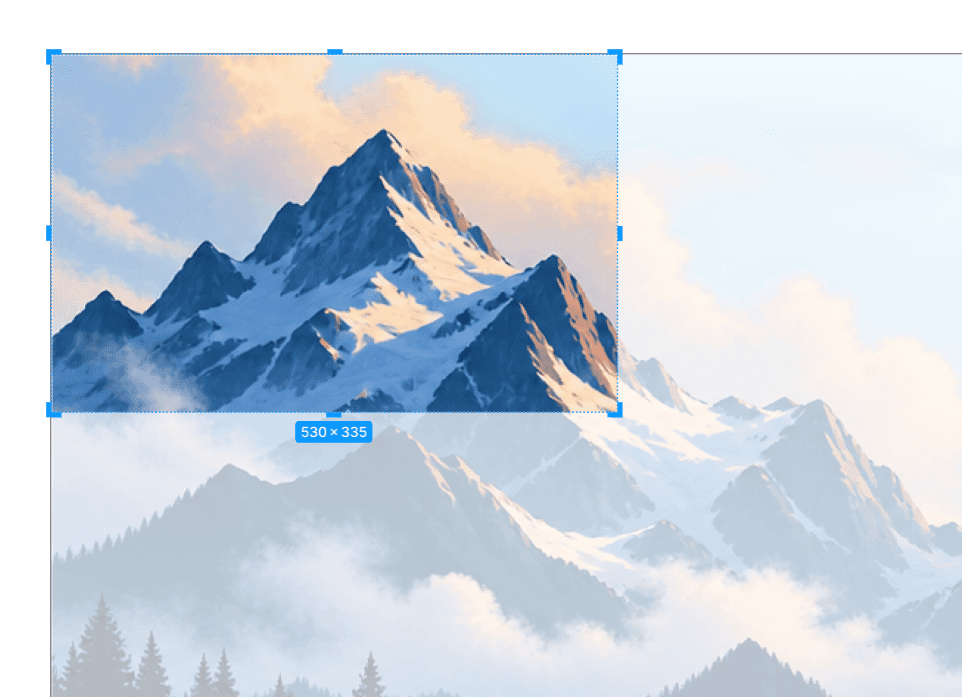
This behavior can be changed using the following CSS properties:
background-size: controls the size of the background image.background-position: sets the position of the background image within the block.background-repeat: determines whether the background is repeated.
While these properties generally behave predictably in web development, the result in email depends on the email client.
How Background Configuration in Outlook Differs from Other Email Clients
To implement background CSS properties that Outlook cannot process correctly, VML (Vector Markup Language) is used. This is a Microsoft technology for working with vector graphics.
VML markup is usually placed inside conditional comments. This gives Outlook a separate version of the block with a background image, while other email clients ignore it and process the CSS properties instead.
A simplified VML structure looks like this:
1 2 3 4 5 6 7 8 9 10<!--[if gte mso 9]> <v:rect xmlns:v="urn:schemas-microsoft-com:vml" fill="true" stroke="false"> <v:fill src="background.jpg" color="#202020" /> <v:textbox inset="0,0,0,0"> <![endif]--> <!-- block content --> <!--[if gte mso 9]> </v:textbox> </v:rect> <![endif]-->
Here, v:rect creates the area, v:fill sets its background, and v:textbox allows regular HTML content to be placed inside it.
Visually, the structure may resemble a standard HTML block with a background. However, the principles of configuring images in VML differ significantly from familiar CSS properties.
Scaling
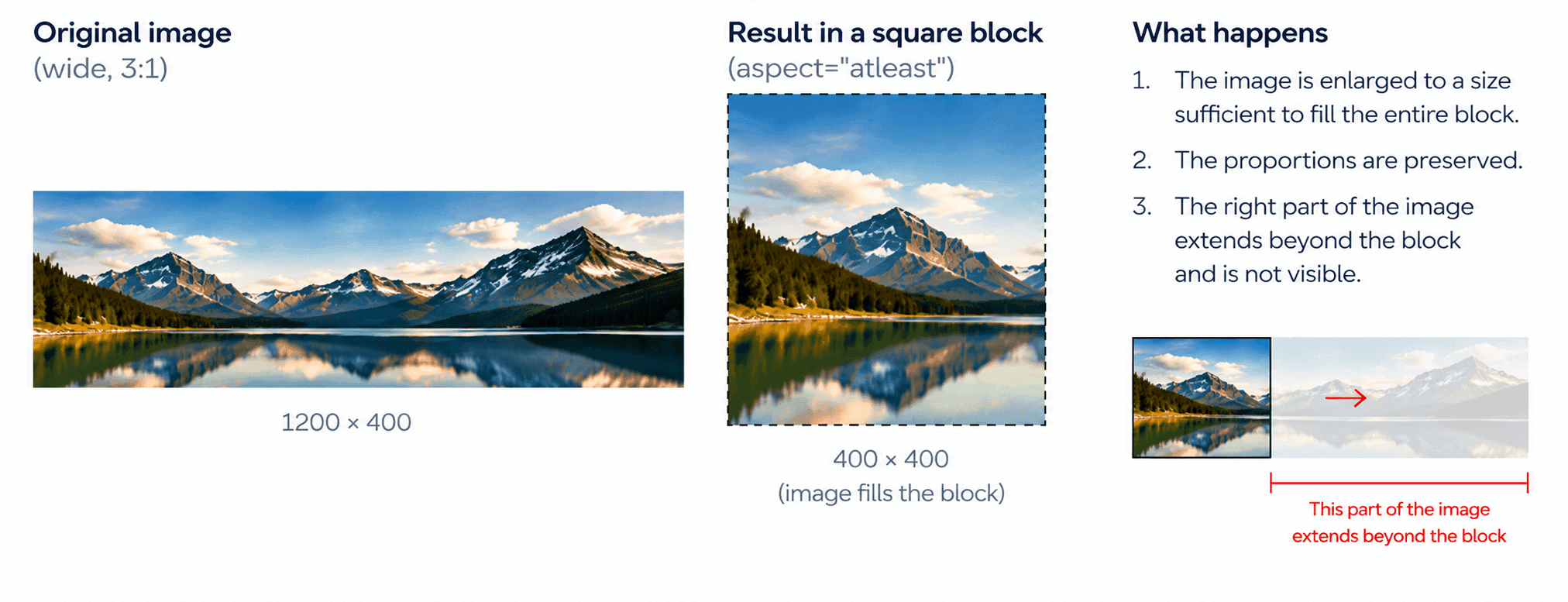
In CSS, the background-size: cover property means that the image should be scaled up or down so that it completely fills the block. If the proportions differ, part of the image will extend beyond the block and be cropped.
The closest VML equivalent to cover is atleast, which is set through the aspect attribute:
<v:fill type="frame" aspect="atleast" src="background.jpg" />
This value specifies that the image should be large enough to fill the entire area. For example, if the block is square and the image is wide, its side portions may extend beyond the block.
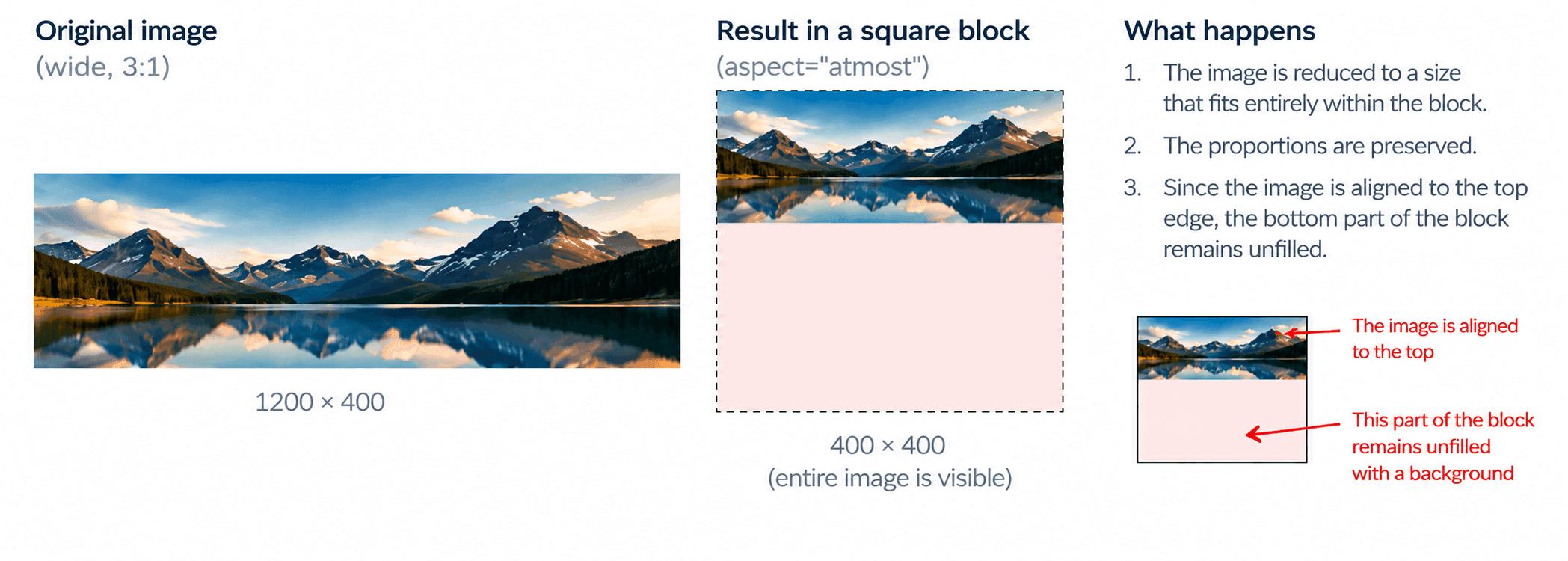
The background-size: contain property, in turn, scales the background image so that it fits entirely within the block while preserving its original proportions. The VML equivalent here is atmost:
<v:fill type="frame" aspect="atmost" src="background.jpg" />
If you need to specify the exact background image size, CSS lets you set it precisely in pixels, for example background-size: 300px 150px. In VML, the sizes parameter is used for this purpose, while the dimensions themselves are usually specified in pt:
<v:fill type="frame" src="background.jpg" sizes="300pt,150pt" />
Positioning
In CSS, the position of a background image is set using the background-position property and the corresponding values such as background-position: center.
In VML, two parameters are used to configure positioning: origin and position. Together, they perform roughly the same task as background-position, but work differently by describing two anchor points:
origindefines a point within the image;positiondefines the position of that point within the VML area.
In the simplest cases, positioning can be fairly straightforward. For example, background-position: top right can be represented in VML as follows:
origin="1,0"
position="1,0"
To center the image, the following values are used:
origin="0.5,0.5"
position="0.5,0.5"
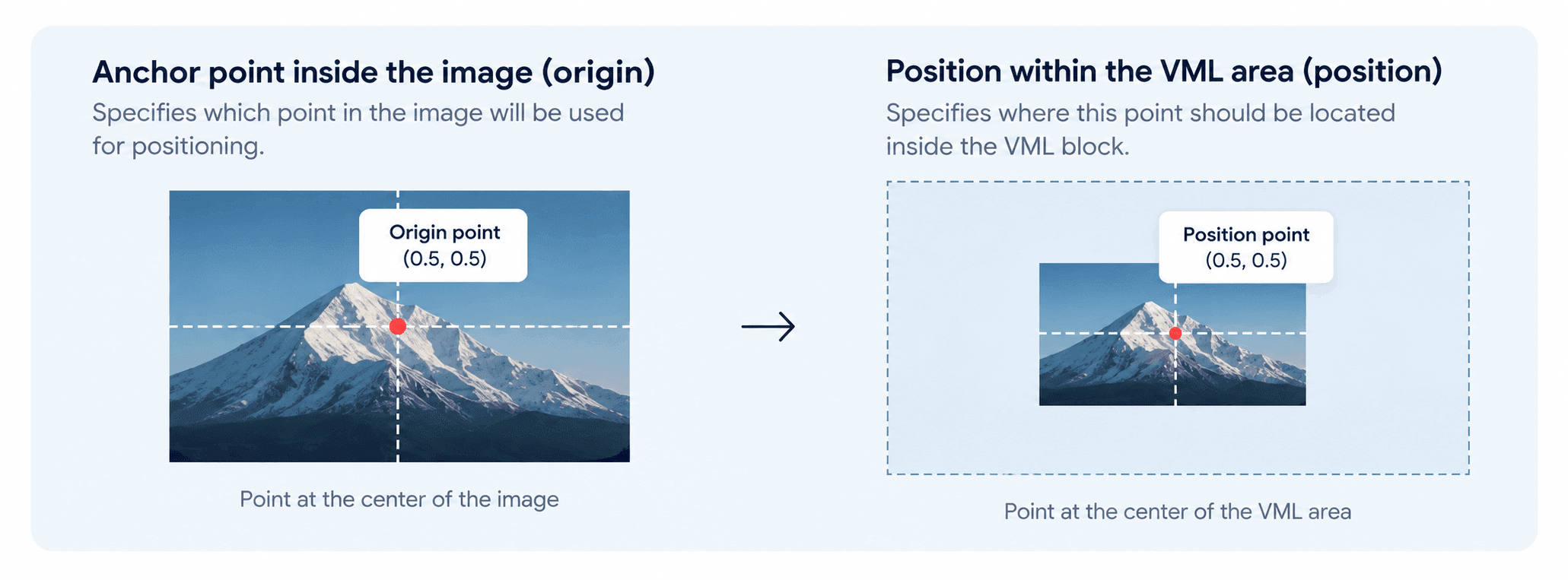
However, positioning becomes more complicated when aspect is used alongside origin and position. VML first scales the image according to aspect and then determines its position. Therefore, the result depends on the dimensions of the original image, the VML area, and the selected scaling mode.
Because of this, a combination such as:
aspect="atmost"
origin="0.5,0.5"
position="0.5,0.5"
will not always be visually equivalent to the following CSS:
background-size: contain;
background-position: center;
Simply put, when working with VML, it is often not enough to merely convert background-size and background-position into the corresponding parameters. You need to determine the size of the image after scaling and then calculate its position within the block.
Repeating
By default, background-repeat property is set to repeat: if the background image is smaller than the area, it repeats horizontally and vertically. To prevent the background from repeating, background-repeat: no-repeat is required.
In VML, background repetition is controlled by the type parameter. For an image that should fill the entire area as a single background, type="frame" is used:
<v:fill type="frame" src="background.jpg" />
For a repeating image, type="tile" is used instead:
<v:fill type="tile" src="pattern.png" />
In this case, the image repeats horizontally and vertically. This is useful for small patterns, textures, and other backgrounds that do not need to be stretched across the entire block.
VML should not be treated as a direct equivalent of CSS. Background scaling, positioning, and repetition work differently here. Therefore Outlook markup has to be generated according to a separate set of rules, which often require complex calculations when done manually.
What Else to Consider When Working with Background Images in Emails
Fallback Color
In some cases, a background image in an email may fail to load. For example, the user may have disabled image loading in their email client, the file may be unavailable, or there may be a network issue.
As a fallback, you should specify a background color:
1 2 3 4 5 6<td bgcolor="#17233C" style=" background-image: url('background.jpg'); " >
If the image fails to load, this color will remain behind the content of the block. This is especially important to consider when text is placed over the image.
It is best to choose the fallback color together with the image during the design stage. For example, a white heading may be easy to read against a dark photo but lose contrast against a light fallback background.
Background Display in Dark Mode
Email clients do not follow a single approach to dark mode. Some do not alter the content of an HTML email at all, some change colors only partially, while others apply more noticeable inversion.
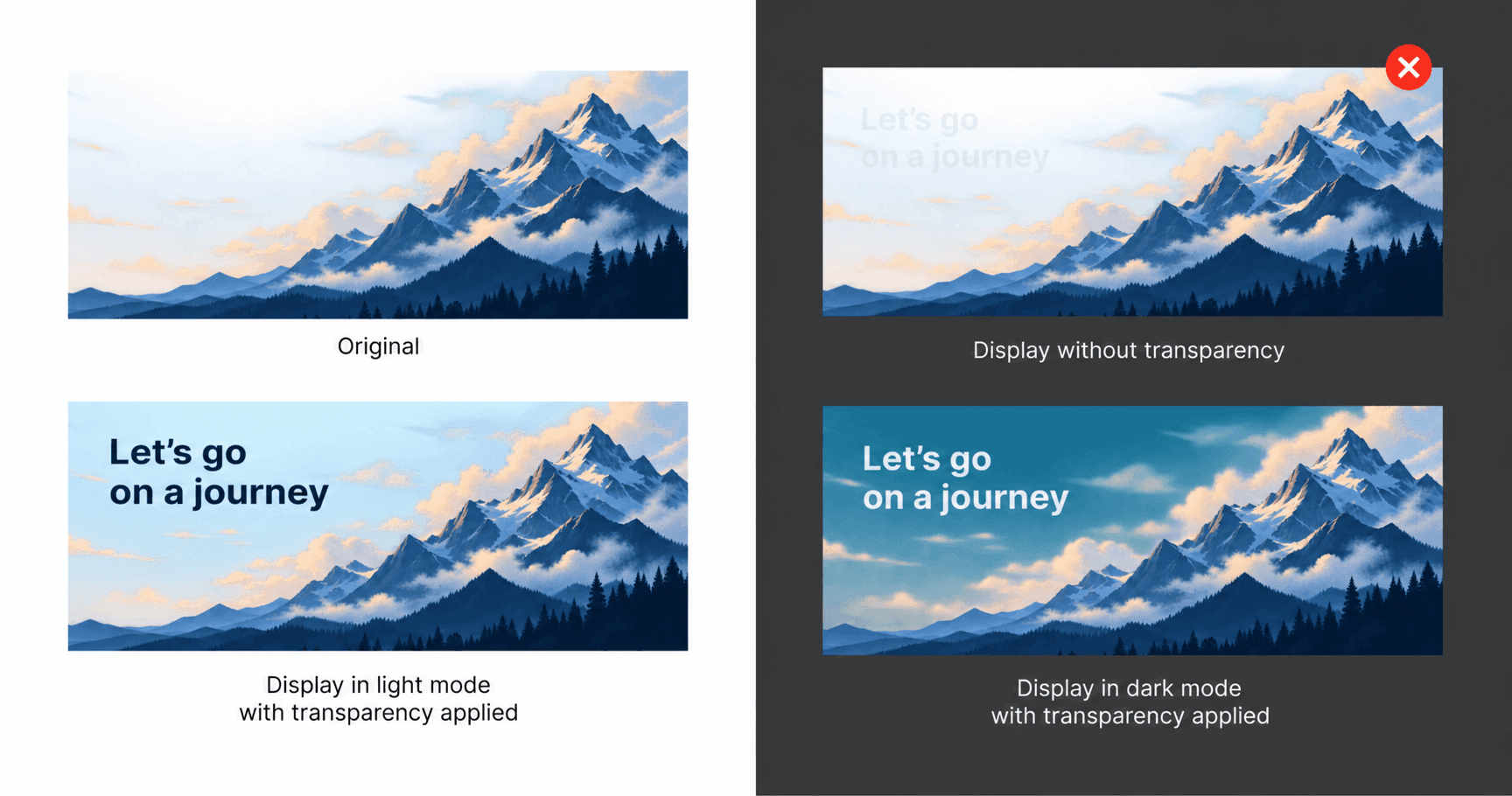
A problem arises when an email client changes the text color but leaves the background image unchanged. For example, dark text may become light while the image beneath it remains the same. As a result, the text may begin to blend into the background.
One way to reduce this risk is to use a semi-transparent background image together with a block background color. The background color, which the email client may change when switching to dark mode, will show through the transparent areas. As a result, the appearance of the block partially adapts to the new color scheme, and the text remains readable.
Nested Backgrounds
In layouts where background images are used across multiple layers, another complication arises. Imagine that:
- a section has its own background;
- inside is a block with another background image;
- inside that block is another element with its own background.
While standard HTML markup allows you to build such a structure, the situation is different with VML. Here, nested structures are not natively supported, therefore each new background level cannot be handled independently. VML structures begin to conflict when nested, and the markup has to be assembled with the entire nesting structure in mind.
In other words, in complex layouts, VML limitations affect the structure of the markup itself, not just individual background parameters.
How Pixcraft Simplifies Working with Background Images
Constantly accounting for differences between email clients can be difficult, while manually creating separate markup for them is time-consuming. Pixcraft email builder accounts for these technical nuances, making it much easier to work with background images.
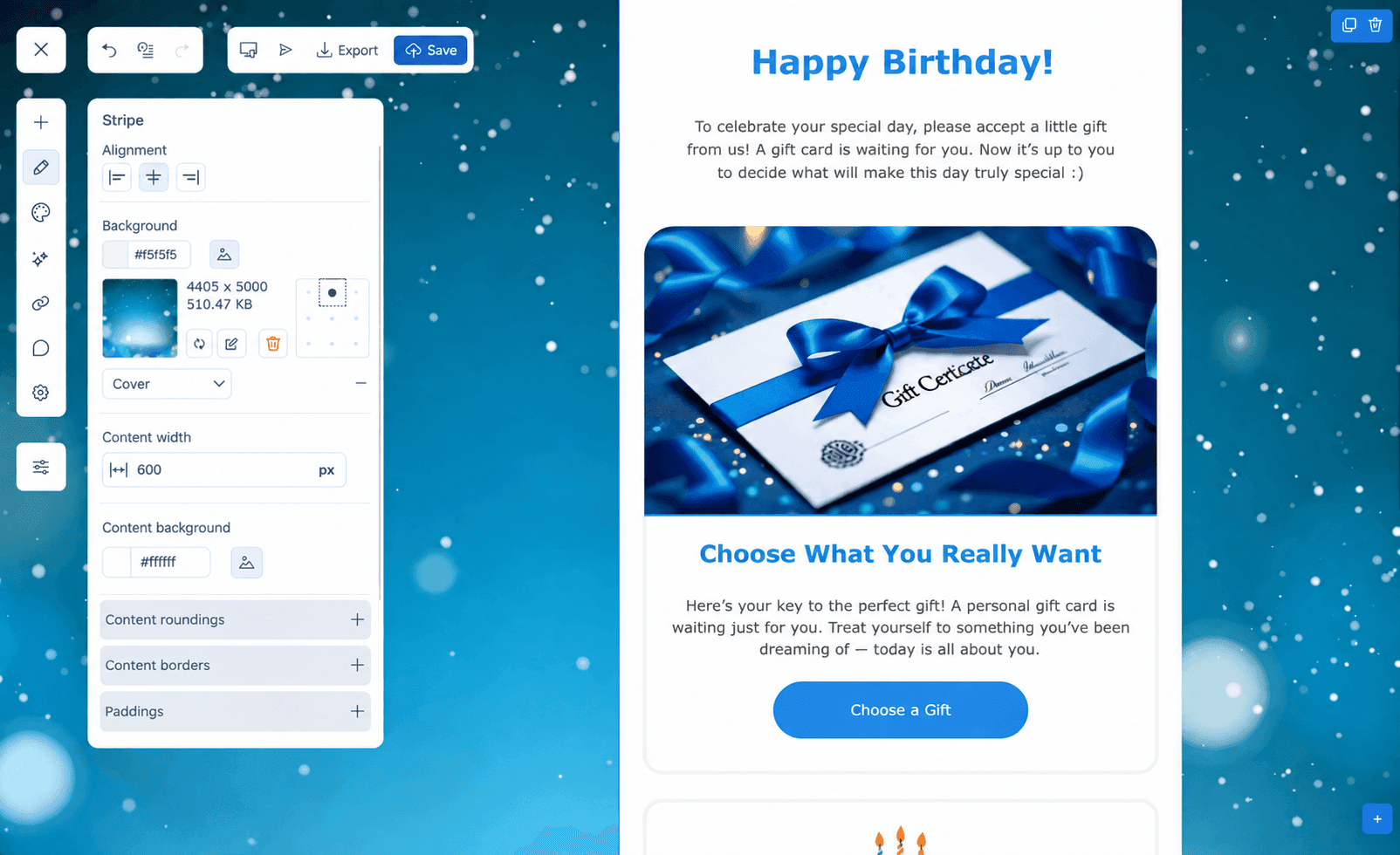
In both the builder and the Pixcraft plugin for Figma, you only need to add background images and set the required parameters. You can configure the display mode, background color for the email and its content, background image position, repetition, and other parameters. All of this can be done without manually working with the markup.
Compatibility with email clients is handled by TJML — an email framework that generates the email markup:
- For email clients where CSS is sufficient, the corresponding properties are used.
- For Outlook, VML markup is generated with the required background image parameters.
As a result, Pixcraft users do not need to work out how to configure background images in the email code. The required background parameters are set directly in the interface, while TJML handles the generation of compatible markup (including VML).
Conclusion
Background images offer more options for email design, but they require careful coding and testing across different email clients. In Pixcraft, the background is configured directly in the interface, while the markup is generated automatically. This eliminates a significant amount of manual work and makes creating complex email layouts much more convenient.