
Pixcraft Update: What New Features and Improvements Have Been Introduced
We have released a major Pixcraft update, one of the largest in the history of our service. The changes affect the interface and the functionality of both the email builder and the Figma plugin.
In this article, we’ll take a look at what has changed, which new features have been added, and which existing features have been improved.
Working With Email Templates
Updated Workspace Screen
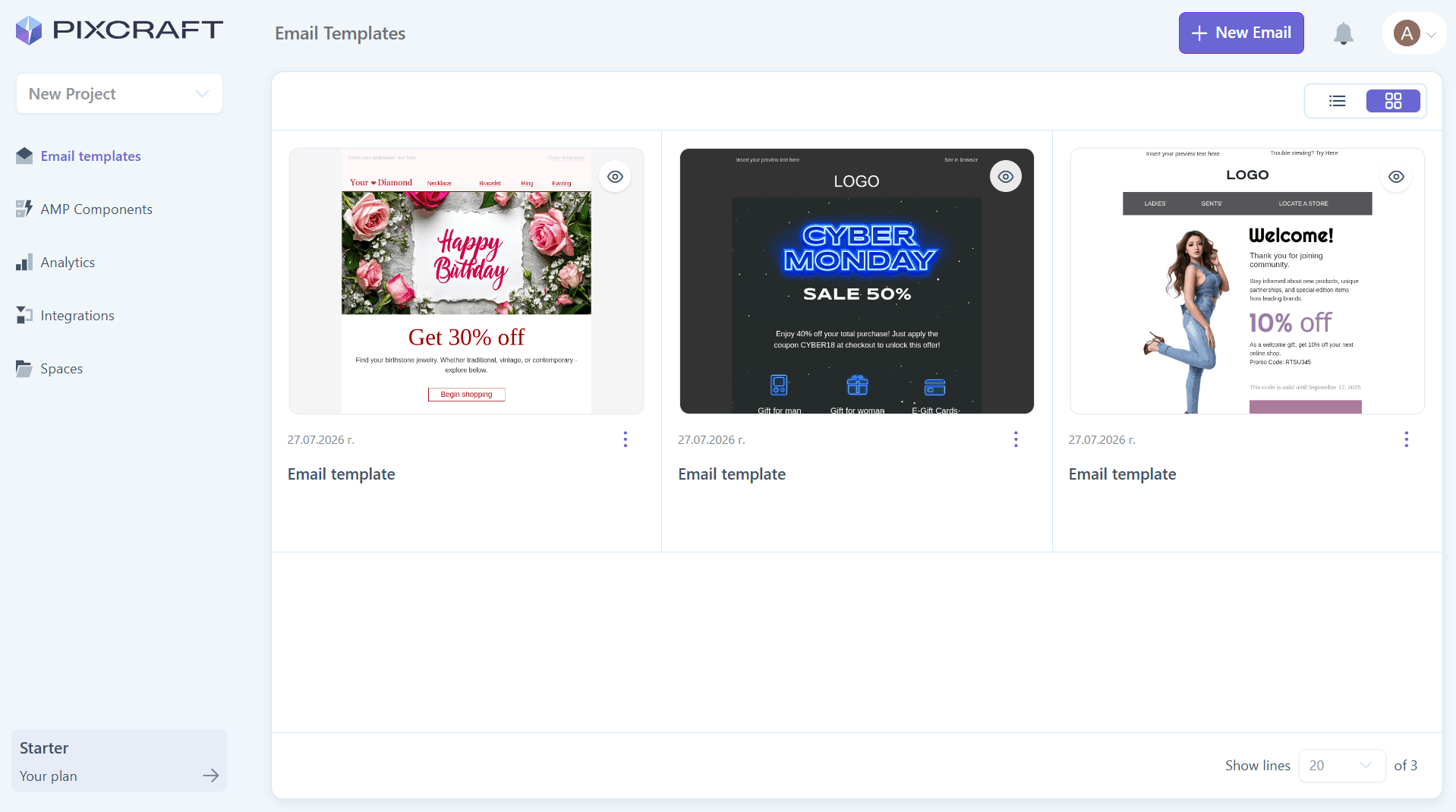
Perhaps the most noticeable change is the redesigned workspace screen, which contains the list of your templates. The interface is now more concise yet informative, while navigation has become significantly more convenient.
Template Preview
In earlier versions of Pixcraft, email previews were available only inside the builder itself. To evaluate how the template looks, you first had to open it in the editor and then switch to the “Preview” mode.
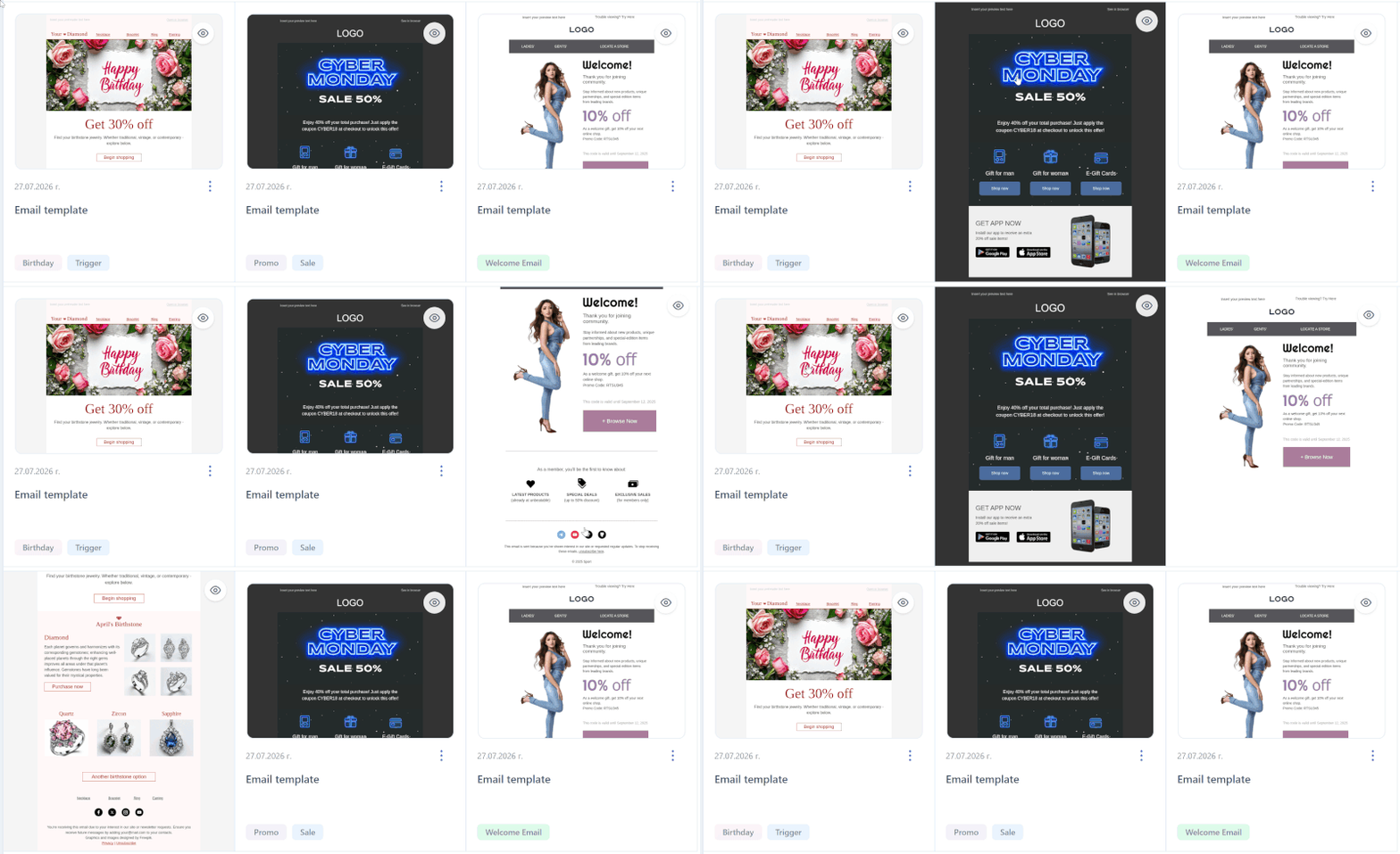
The latest update introduces the option to preview email templates directly from the list in the main workspace. This feature is particularly useful when you need to quickly review or compare several emails.
Here is how it works: hover the cursor over a template, and the email will become slightly larger on the screen and scroll up and down as you move the cursor vertically. As soon as you move the cursor away, the email will return to its original size.
Tag System
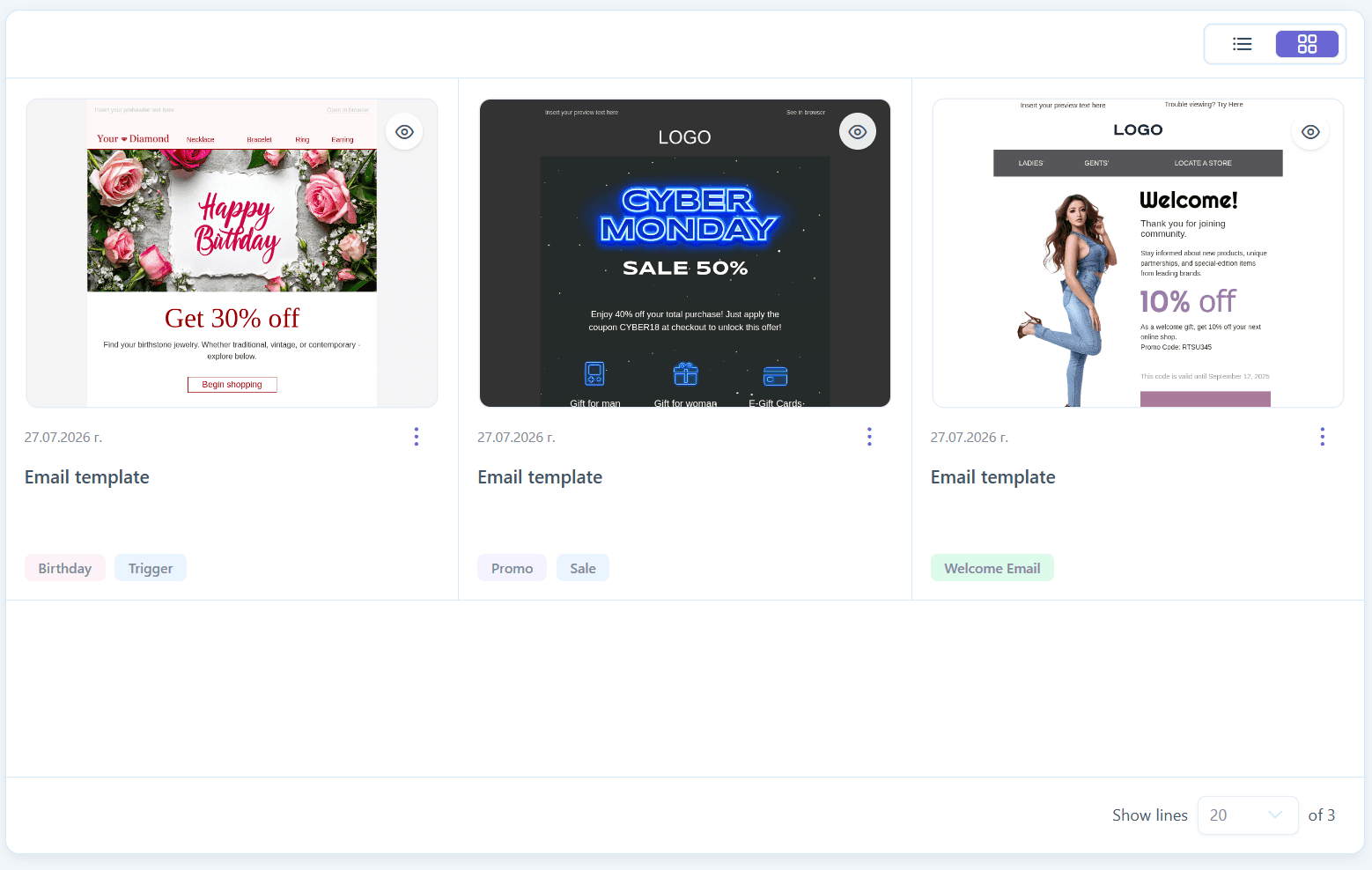
You can now add custom tags to templates and AMP components, making navigation and search easier.
The tag names are defined by the user. For example, you may specify the template type (such as a triggered email, promotional email, or regular newsletter), its association with a particular campaign, the name of the employee who worked on the email, or any other relevant information.
Adding a tag is easy. Click the three vertical dots below a template or next to an AMP component to open the context menu. After that, simply select "Edit tags" and create a new tag or assign an existing one from the list.
Sending Test Emails
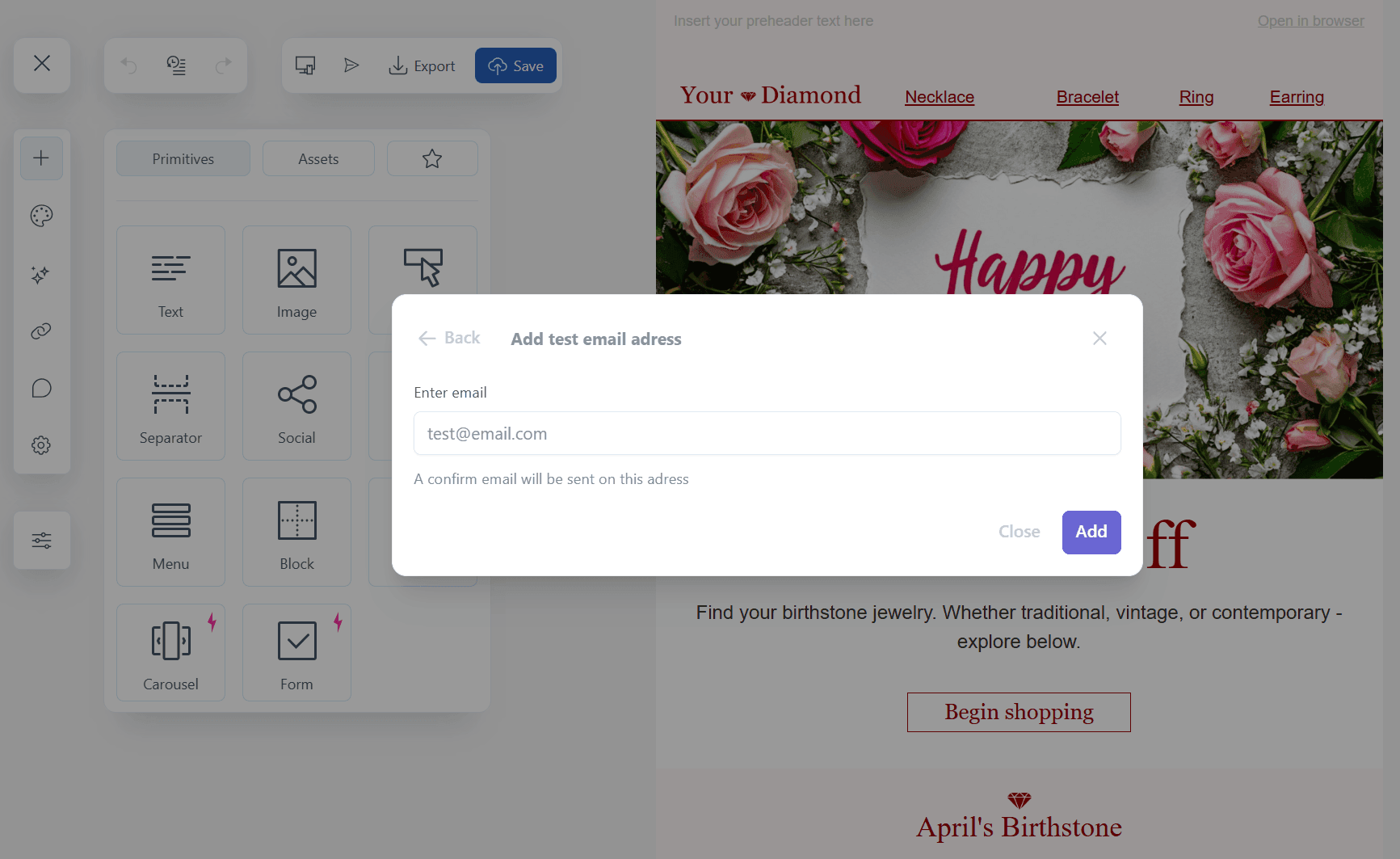
One of the most important updates in the Pixcraft email builder is the “Send test” feature, which allows you to check how a template appears in the required email clients before launching the campaign.
The "Send test" icon is located in the upper-left panel next to the “Preview”, “Export”, and “Save” buttons. Click it to open a window where you can select a test address from the list or enter a new one. Then send the email to the selected inbox and make sure the received version of the template matches the intended design.
Updated Export and Integrations Panel
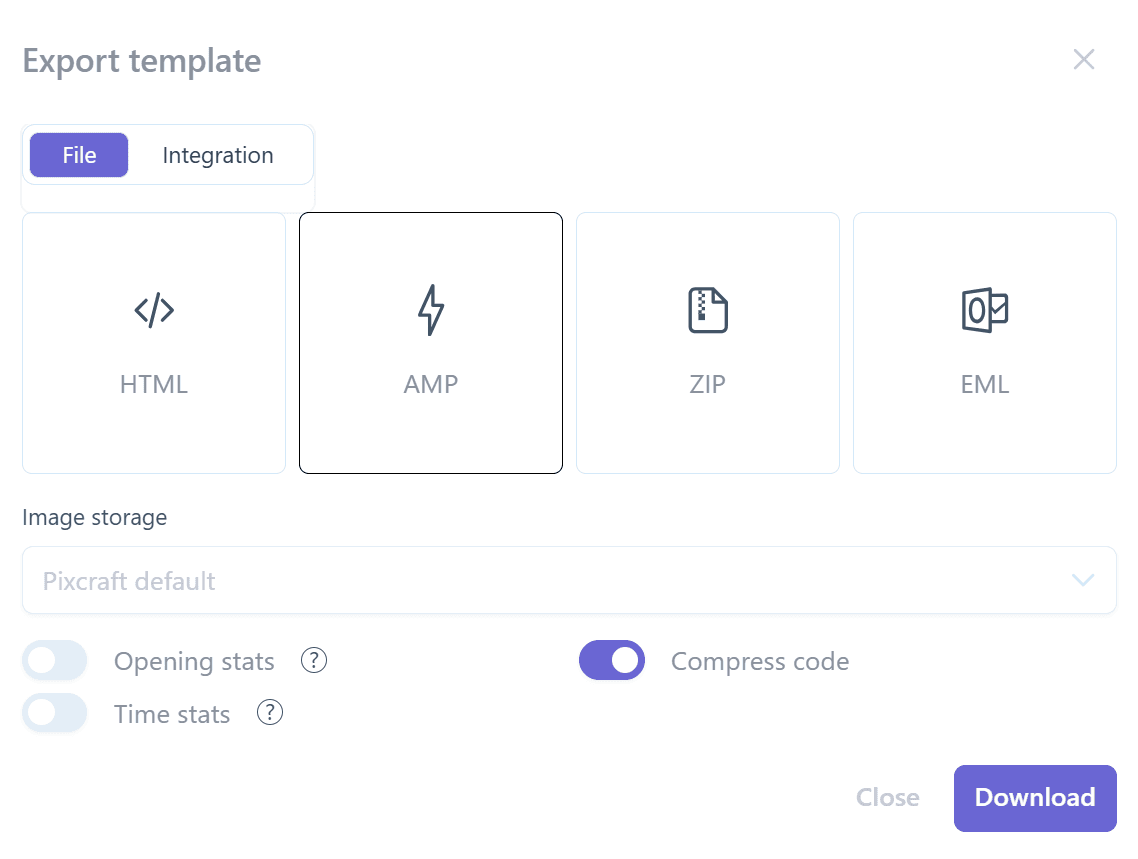
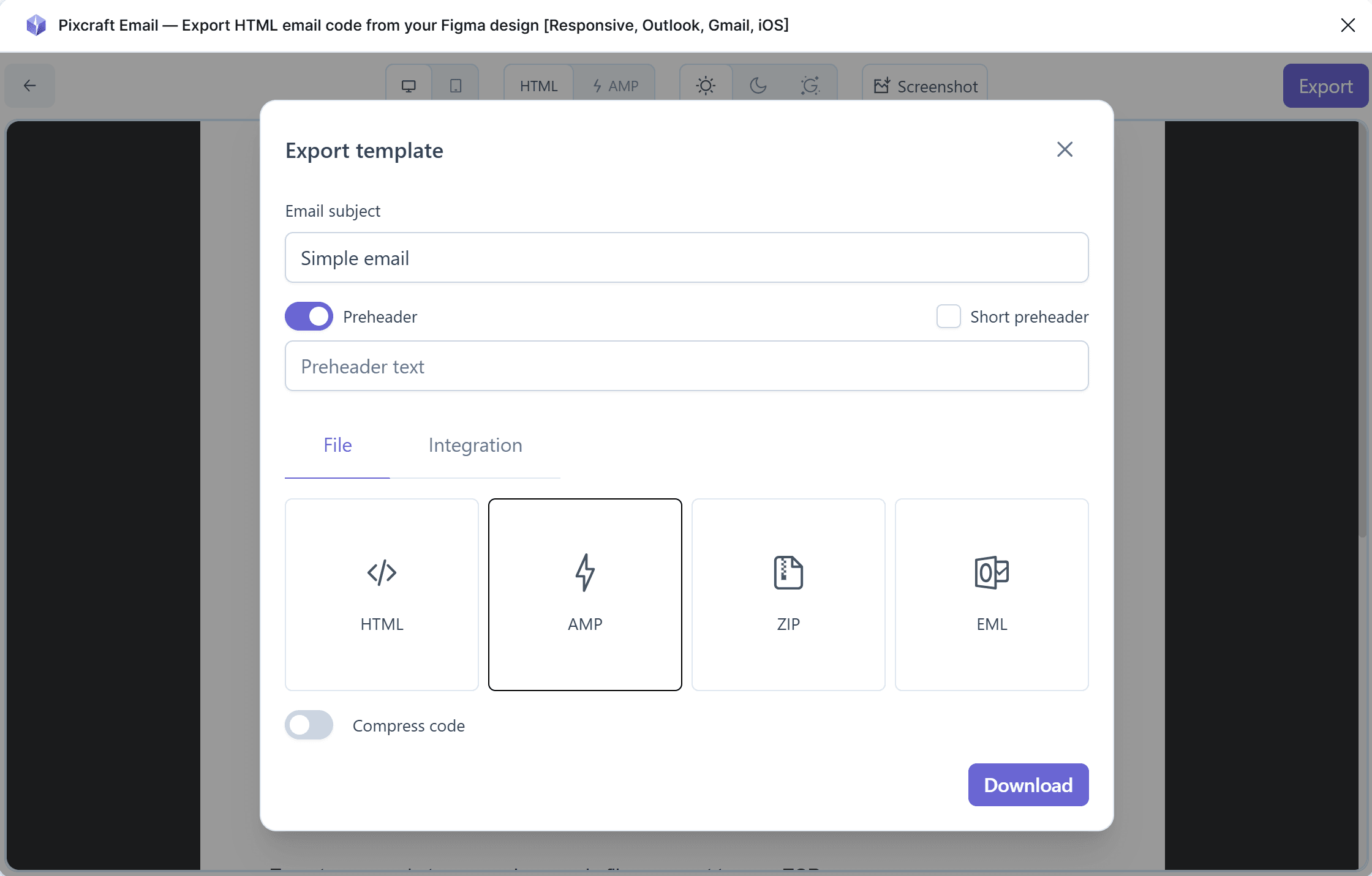
The template export section has been substantially redesigned: we updated the export panel to make it much more visually comfortable to use. On top of that, we added an option to compress the code when exporting an email. You can enable or disable it using the corresponding toggle.
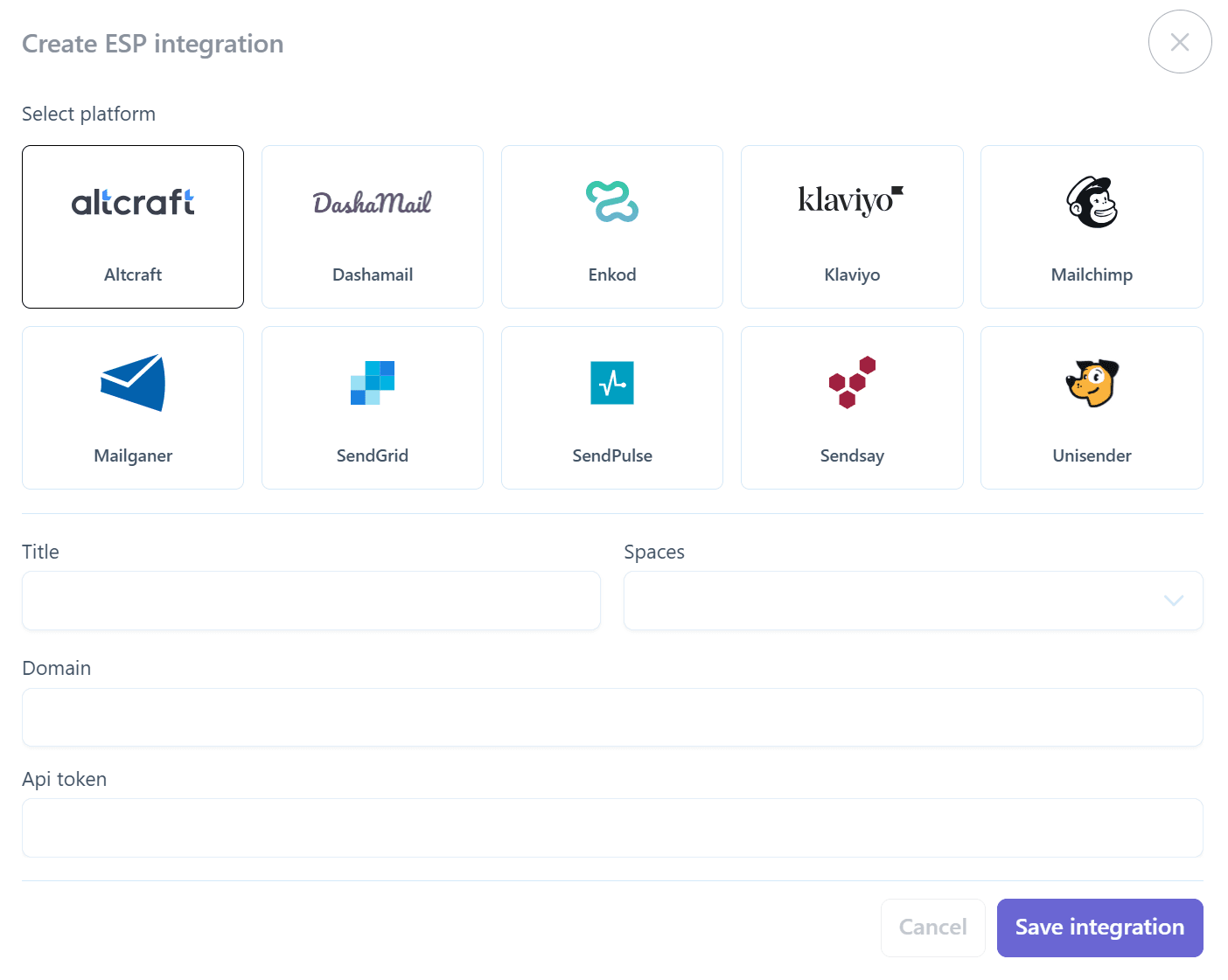
The ESP integration interface has also been redesigned, becoming more intuitive. You can configure a connection to the required platform either through the "Export" function in the builder or in the "Integrations" section on the main screen.
Assets Separated by Project
The next update affects custom assets that can be saved while working on a template. They are now stored separately within each project and are no longer mixed with custom blocks from other projects.
This separation is particularly relevant for teams that work with several brands, products, or business areas at the same time. Elements are no longer mixed in a shared library, and each project contains only the set of user blocks associated with its current list of emails.
The number of available projects depends on your pricing plan: 1 project on Personal, up to 3 projects on Starter, and up to 10 projects on Pro.
Flexible Access Permission Settings
Pixcraft users can invite participants to projects and assign them the required roles, such as moderator or viewer. The update introduces detailed permission management for invited participants: now you can grant only the permissions required in each individual case.
Access permissions can be configured for:
- templates;
- components;
- assets;
- integrations;
- file storages;
- statistics;
- test emails.
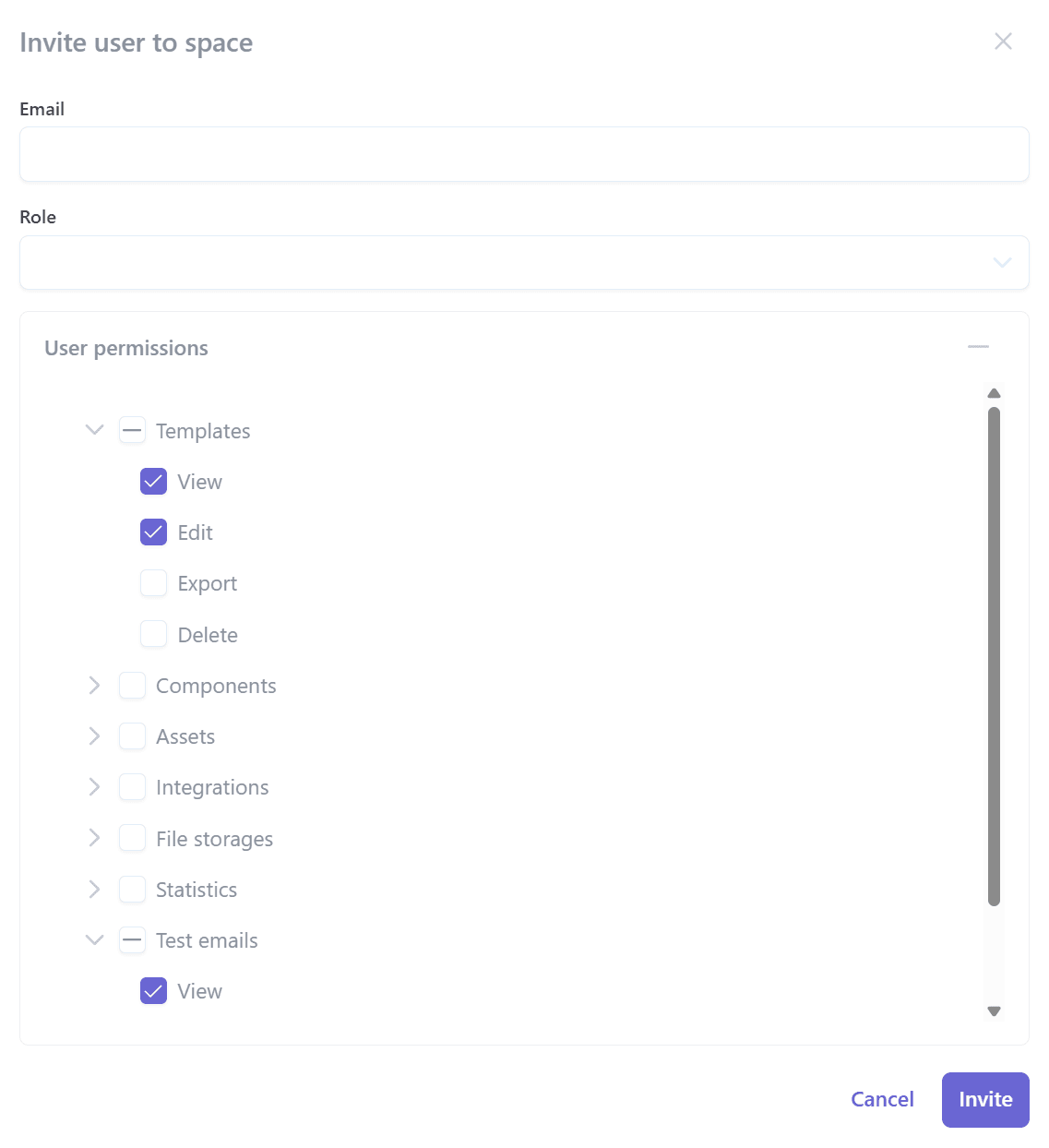
You decide which permissions to grant. For example, one employee can receive permission to edit templates while being restricted from editing and moderating components. At the same time, another employee can be given access only to view statistics, without permission to edit materials.
Monitoring Pricing Plan Limits
The pricing plan menu is located in the "Your plan" section in the lower-left corner. It displays the plan’s validity period, as well as the number of available users, created projects, templates, exports, and AMP events.
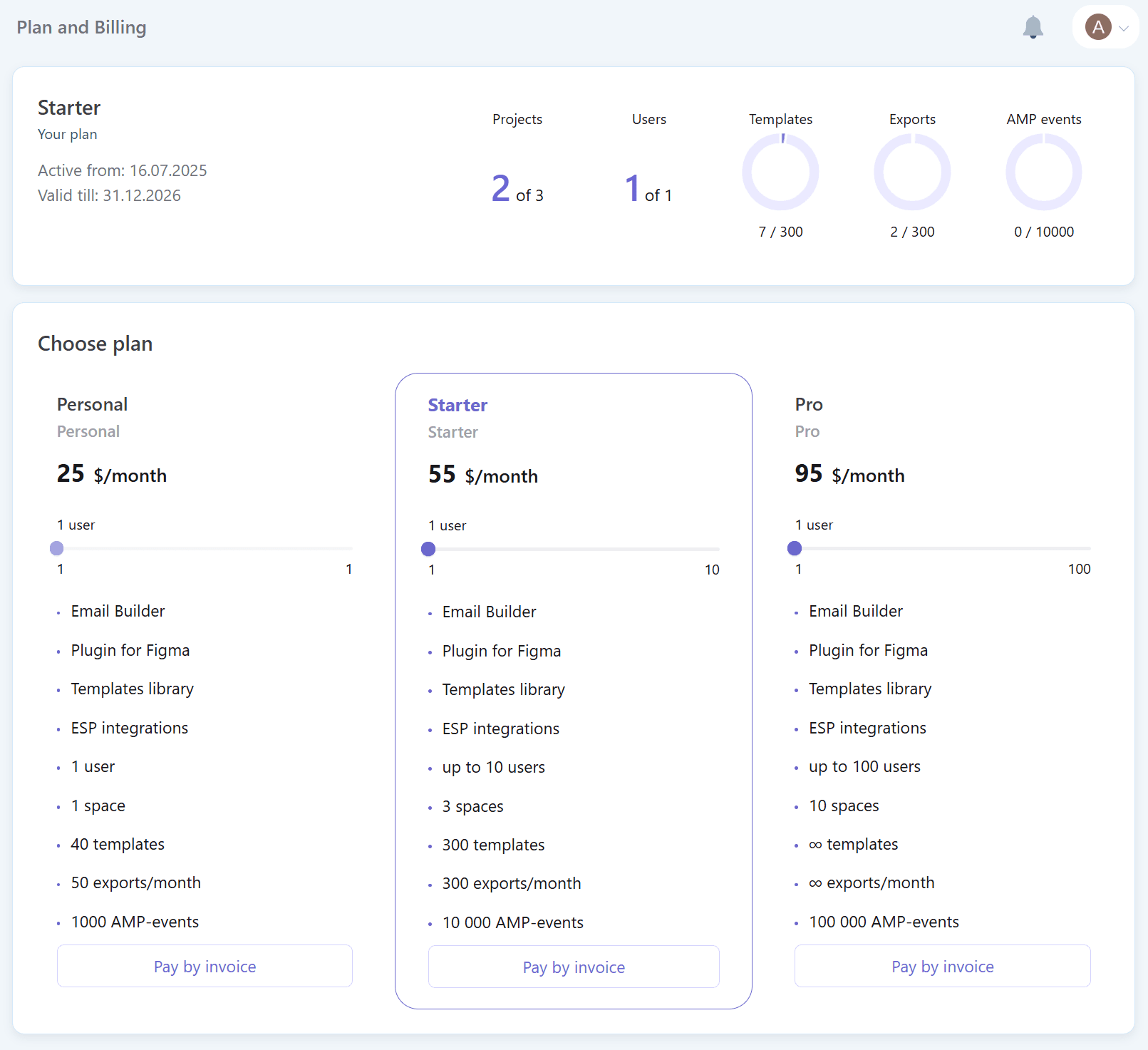
Keep in mind that the selected pricing plan conditions apply to the entire workspace and are not calculated separately for each project or user. For example, the Starter plan includes up to 3 projects and 300 templates, as well as 300 template exports per month. In this case:
- If you create 200 templates within one project, only 100 templates in total will remain available for the other two projects.
- Exports are counted according to the same principle: 300 monthly exports are shared among all project participants rather than being allocated separately to each participant.
Analytics
Previously, Pixcraft already included analytics for AMP emails. Yet the latest update has expanded the service’s capabilities and made its analytics independent of third-party solutions:
- First, you can now add analytics both to templates created in Pixcraft and to templates built manually.
- Second, analytics now operates entirely within the Pixcraft environment. Integration with Google Analytics or Yandex Metrica is no longer required.
Statistics tracking for emails created in the builder is enabled during export. You can choose to collect statistics on opens and time spent in the email. The "Analytics" section displays all emails exported with event collection enabled. You can also create a new campaign directly in this section.
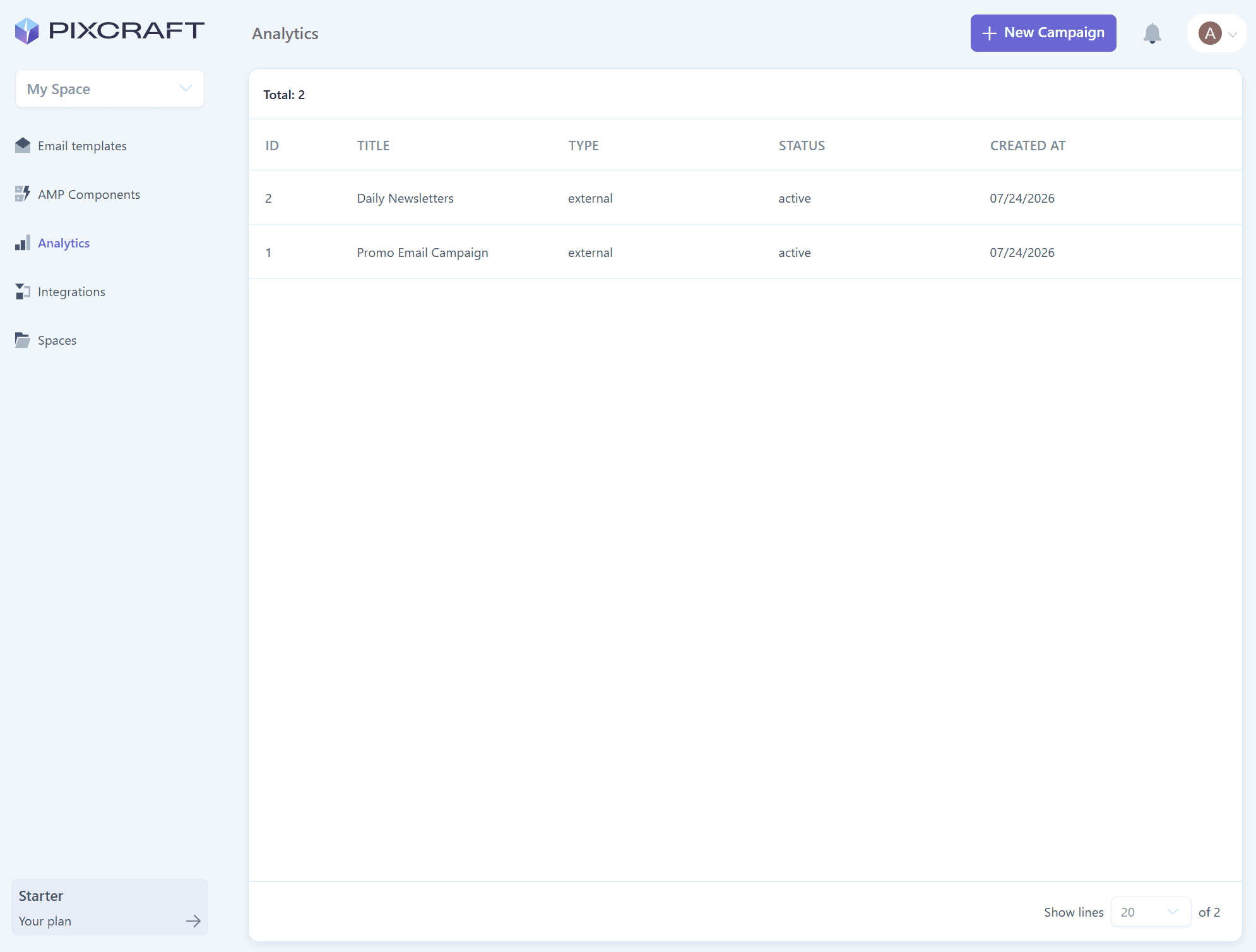
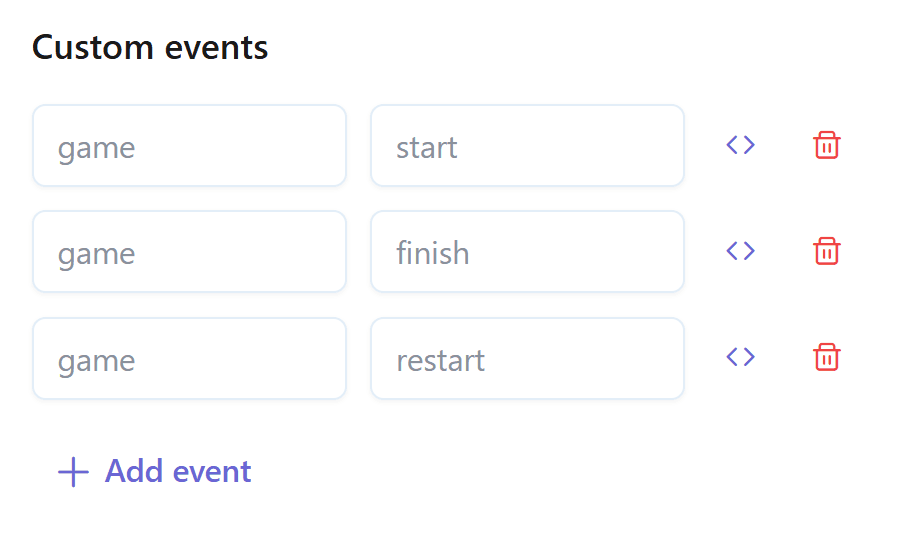
Custom events are created and operate in Pixcraft in a way similar to Google Analytics. As mentioned above, no third-party services need to be connected. You can create and edit events and track the associated actions directly in the interface.
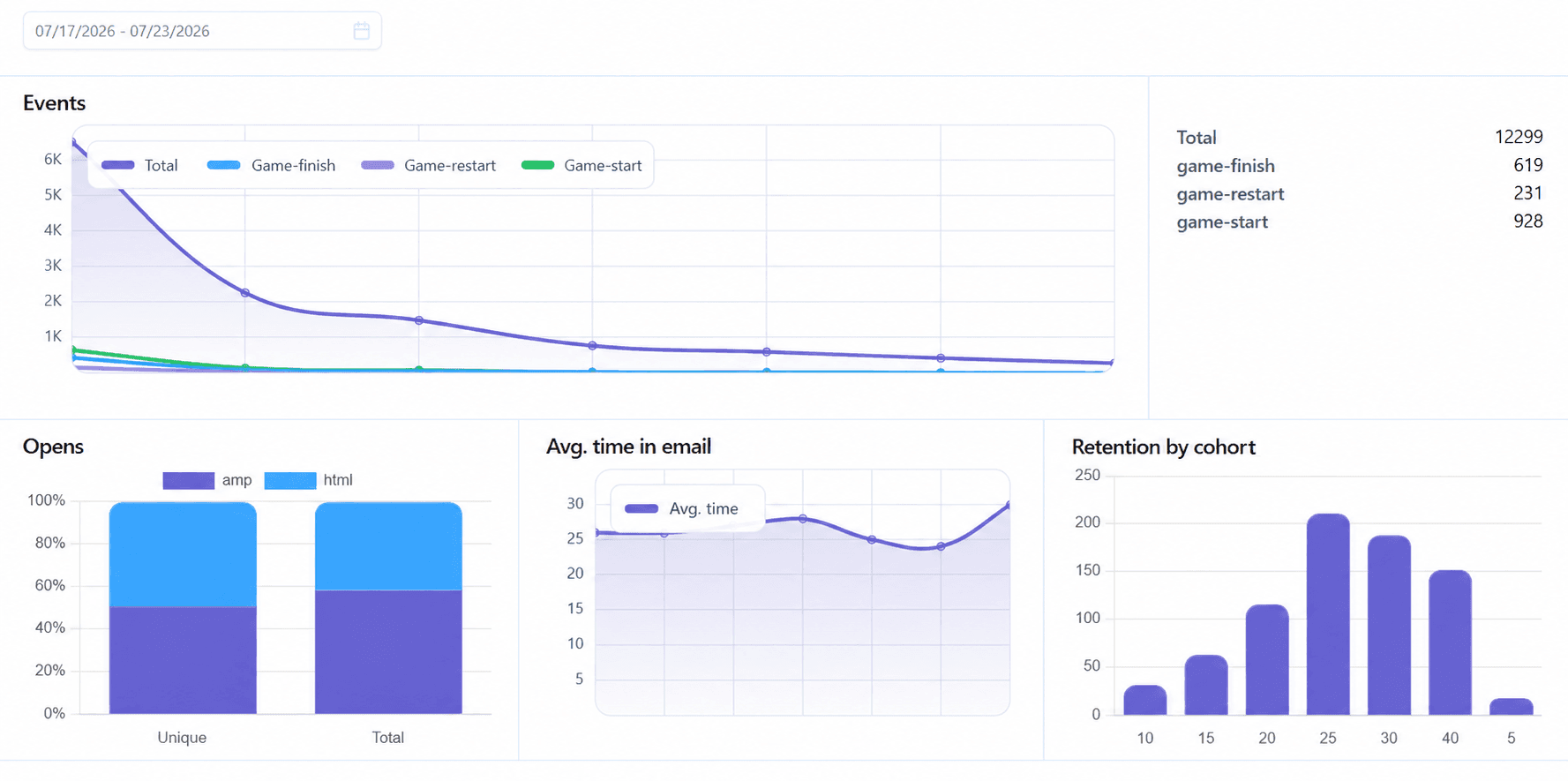
Report charts are updated automatically for all current events. Opens are tracked for both HTML and AMP emails. Separate charts are available for average time spent in an email, along with cohort retention analysis for AMP emails.
AMP Components
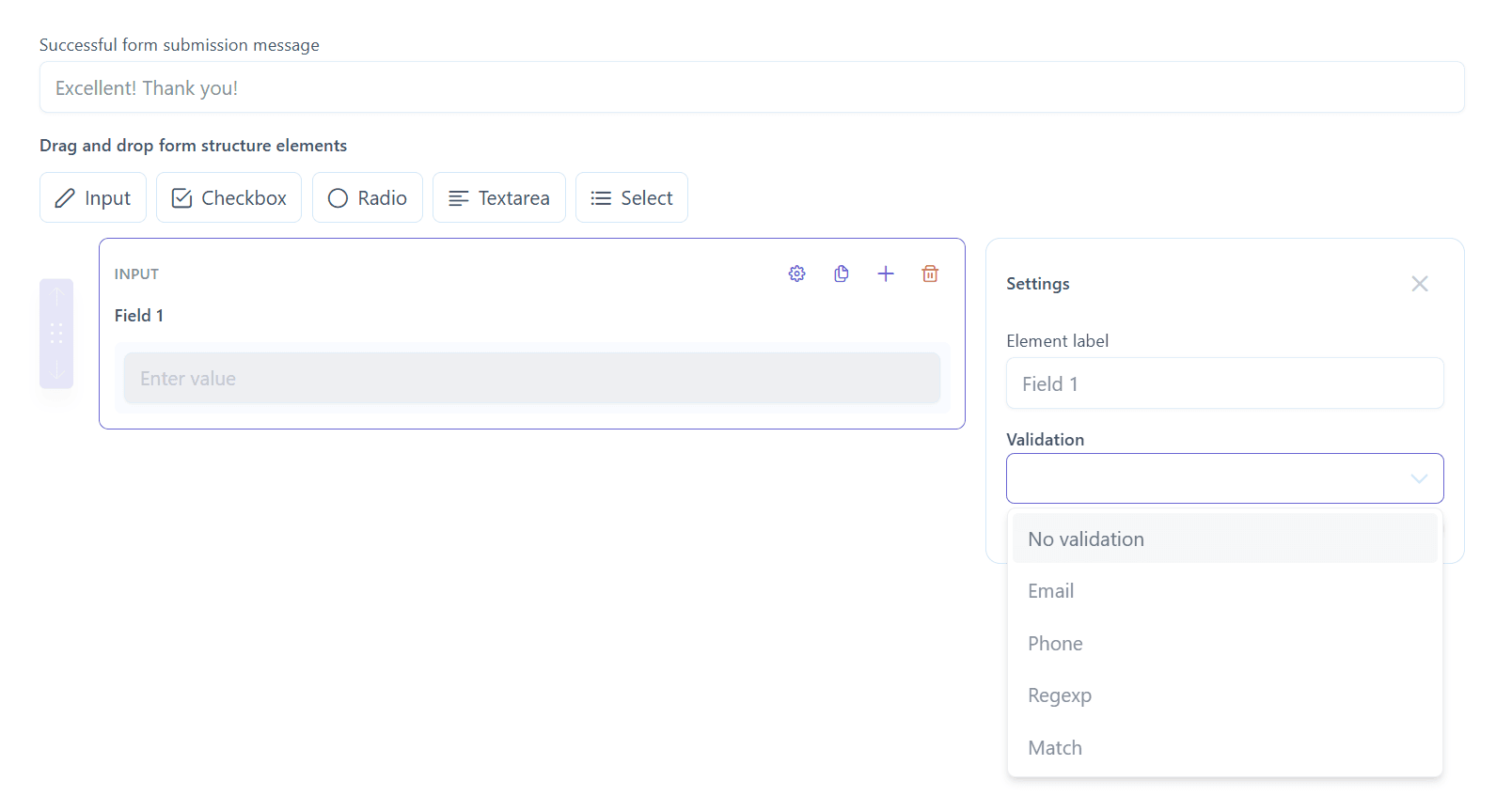
AMP component settings have become even more flexible and detailed. In particular, you can now change the set of fields they contain, creating the required component variations depending on the email campaign.
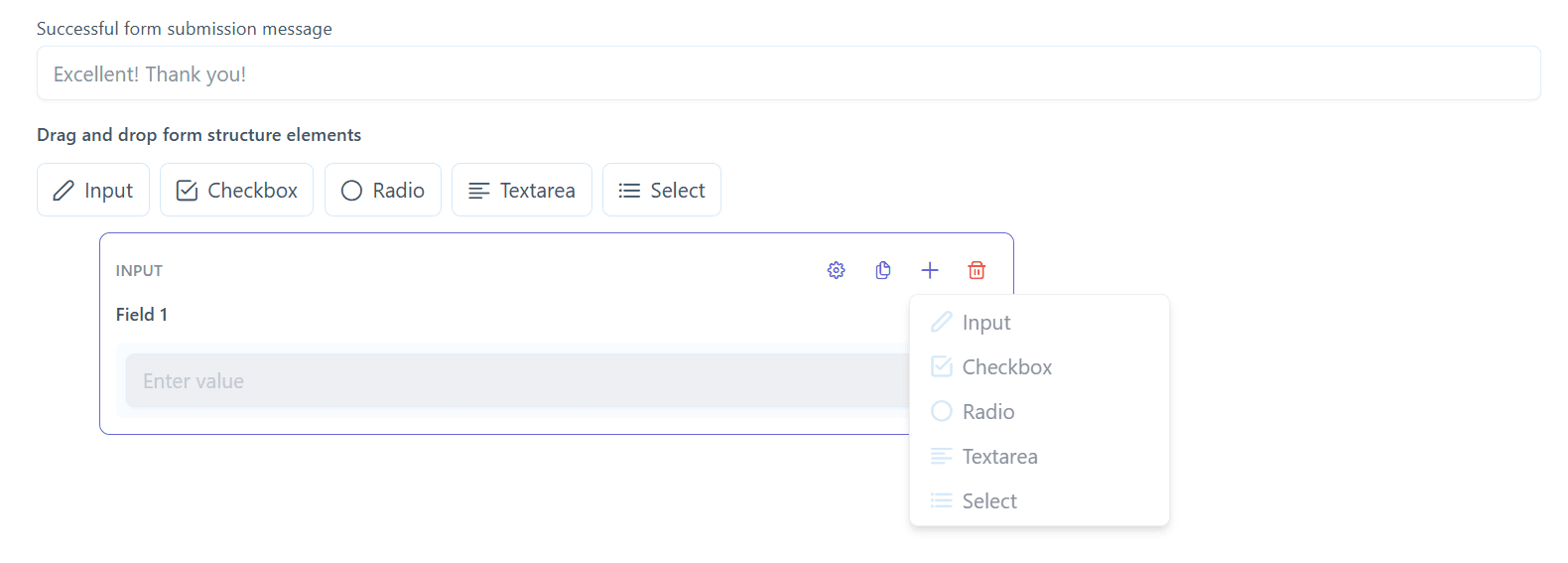
You can also define validation rules for fields. For example, validation can be configured for an email address or phone number.
Telegram Integration
Previously, webhooks were the only option available for quickly processing messages from AMP forms and the Interactive stream. With the latest update, you can now also use direct integration with Telegram.
The integration is configured through a dedicated bot. For example, you can add it to your own group and configure it to send notifications directly there.
No need to worry if you already use webhooks: they remain available and continue to work as before.
Figma Plugin
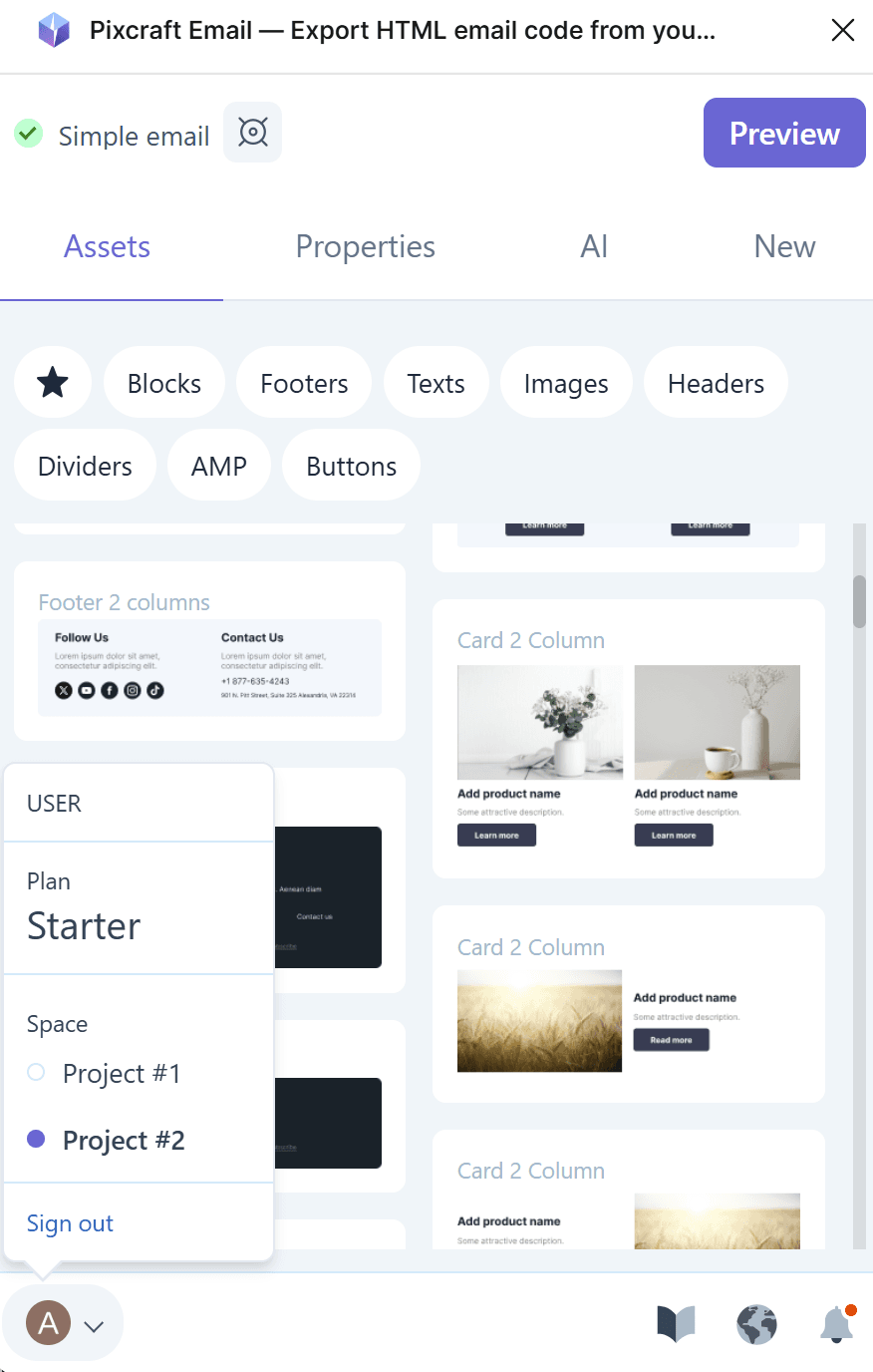
The changes also affect the Pixcraft plugin for Figma. Here, project support has been added: by default, the plugin uses the project you previously worked in, while another project can be selected from the user menu.
The export and integrations panel has also been updated. Its appearance now matches the corresponding panel in the Pixcraft builder and includes the same visual improvements and code compression option.
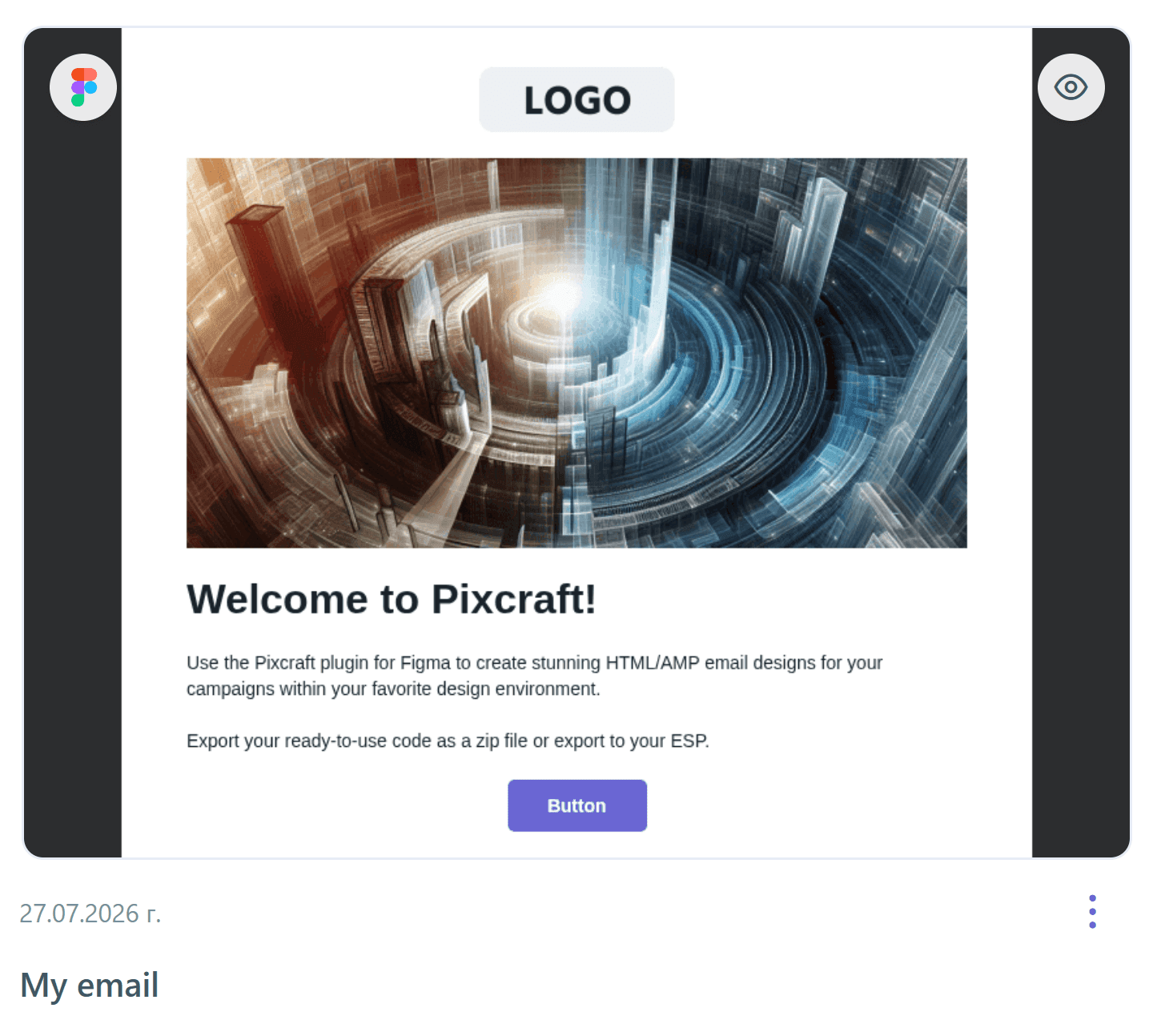
When you export a layout through the Figma plugin, it automatically appears in the template list of the current project and is marked with the corresponding icon.
Other Changes
The list of new features does not end there. In addition to the major updates, the following technical improvements have been introduced in Pixcraft:
- Email templates are now saved several times faster. You no longer need to wait for a lengthy loading process after making substantial changes.
- Automatic lossless PNG image compression has been added. Compression is performed when an image is uploaded. The same mechanism is applied to templates created in Figma using the plugin.
- The service’s stability, fault tolerance, security, and overall performance have also been improved.
Conclusion
The major Pixcraft update makes working on emails easier at every stage, from preparing a layout to testing, exporting, and analyzing the results. Try the new features yourself: create an account and receive free access to Pixcraft for 14 days.