
Deep Links in Email: What They Are and How to Use Them
Traditionally, links in emails lead to web pages, but their capabilities do not end there. Links can also direct users straight to a specific action: for example, open an app or proceed to a phone call.
Deep links are used for these types of transitions. Let’s take a look at what they are, how they work, and what to consider when using deep links in email campaigns.
What Are Deep Links
A deep link is a link that leads to a specific section or screen of an app. In general, the mechanism works like this: the user taps a link, the operating system checks whether there is an app on the device that can handle it, and, under the appropriate conditions, opens the required screen in that app.
This shortens the path between the email and the target action. For example, with deep links:
- in a delivery email, the “View order” button can lead to the relevant order in the app;
- in a price-drop email, the user can immediately open the product card;
- from a subscription renewal email, the user can go to the relevant form in the app, and so on.
How Deep Links Interact With Mobile Apps
One common type of deep link is a regular HTTPS link associated with a mobile app. It looks like a simple web address:
https://shop.example.com/products/xxxx
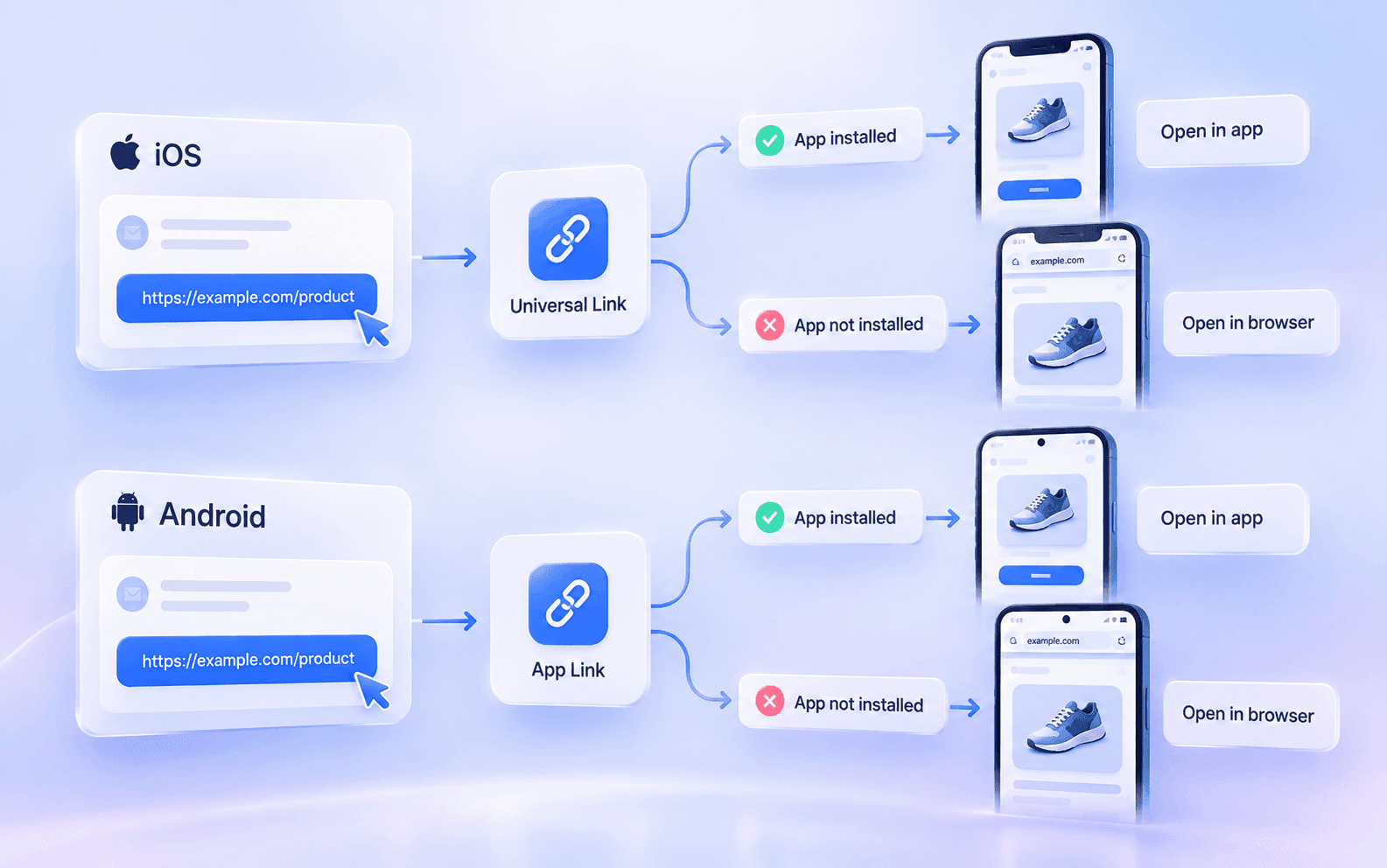
When the user opens it, the operating system checks whether the installed app can handle this address. If so, the user is taken to the relevant section of the app. If the app is not installed, the URL opens as a regular web link.
At the same time, iOS and Android provide special deep-linking mechanisms designed for their respective systems.
Deep Links on iOS
On Apple devices, Universal Links are used to open apps from HTTPS links. These are essentially regular web addresses that are associated with an app. If this association is configured and the app is installed, iOS can pass the link to the app instead of opening it in Safari.
However, a Universal Link should not be treated as a command that forcibly launches the app every time. iOS takes context into account: for example, if the user has already opened a website in Safari and clicks a link from the same domain, the system may continue navigation in the browser.
Deep Links on Android
On Android, a similar task is handled by App Links — HTTP or HTTPS links for which the association between a website and an app has been verified. After verification, the system can pass the link to the app without asking the user to choose a handler. These links are called Verified App Links.
If the app is not installed, the address continues to work as a regular web link and opens in the browser.
App Links are supported starting from Android 6 on devices with Google Services. If Google Services are unavailable, verification of the association between the website and the app may work differently. Therefore, App Links should be tested separately on such devices.
Custom URI Schemes
In addition to HTTPS links, an app can use its own URI scheme, for example:
shopapp://products/XXXX
The operating system looks for an installed app that is registered to handle links with this scheme. If a suitable app is found, it receives the data from the link and determines which screen to open.
It is important to note that shopapp://products/XXXX is not a regular web link and cannot be opened as a web address. If no suitable app is installed on the device, the transition may result in an error or simply fail to trigger the expected action. The outcome depends on the device and the application through which the user opens the link.
Deferred Deep Linking
Another mechanism worth mentioning is Deferred Deep Linking, where the destination of a deep link is preserved even if the app has not yet been installed.
For example, a user taps the “View product” button in an email, but the store app is not installed on the device. In this case, the user is first directed to install the app, and after the first launch, the relevant product card opens.
A regular Universal Link or App Link is not enough for this scenario: on their own, they do not preserve the transition context through the app installation process. The original data must be stored separately and then passed to the app. To achieve this, additional app-side logic or specialized services (such as Branch or AppsFlyer OneLink) are used.
What Other Links Can Lead to Actions Outside the Email
Emails can also use other URI schemes. These are not mobile app deep links in the same sense as Universal Links or App Links, but they can also take the user from the email client to a specific action.
tel:
The tel: scheme is used for phone numbers:
<a href="tel:+1234567890">Call Us Now</a>
After the click, the device passes the number to an application capable of handling tel: links. The URI itself does not mean that the call will start automatically: making the call requires an action or confirmation from the user.
On a smartphone, the call interface usually opens. On a computer, the result depends on whether a suitable application is installed. Therefore, it is better to keep the phone number visible in the email body instead of relying only on a “Call Us” button.
mailto:
The mailto: URI scheme is used to create a new email. A simple version may look like this:
1 2 3<a href="mailto:support@example.com"> Contact Support </a>
A mailto: link can also include a predefined subject line and message body. For this, the subject and body parameters are used:
1 2 3<a href="mailto:support@example.com?subject=Order%20question&body=Hello"> Contact Support </a>
Characters in the link must be encoded correctly. For example, a space is represented as %20, while a line break in the message body is represented as %0D%0A. Cyrillic characters are first encoded in UTF-8, after which the bytes are written using percent-encoding — a special format for representing characters in URLs as %XX sequences.
Third-party apps, such as messaging apps or banking services, can also have their own deep links, including both HTTPS links and URI schemes. The format depends on the specific app, so before launching a campaign, it is worth checking the service’s current documentation and verifying that the link works correctly on the required devices.
What to Consider When Using Deep Links in Email
A link that works correctly when opened directly may behave differently inside an email.
One reason for this is click tracking. To count clicks, an email service may replace the original URL with a link on its tracking domain. As a result, the user first follows that address, the system records the click, and only then redirects the user to the final page.
This is important for Universal Links and App Links because they are associated with specific domains. If the email service replaces the original URL with a tracking link, the direct transition to the app may behave differently.
For certain links, click tracking can be disabled. For example, Altcraft Platform can remove the tracking redirect so that the user goes directly to the original URL. In this case, however, clicks on this link will not be tracked.
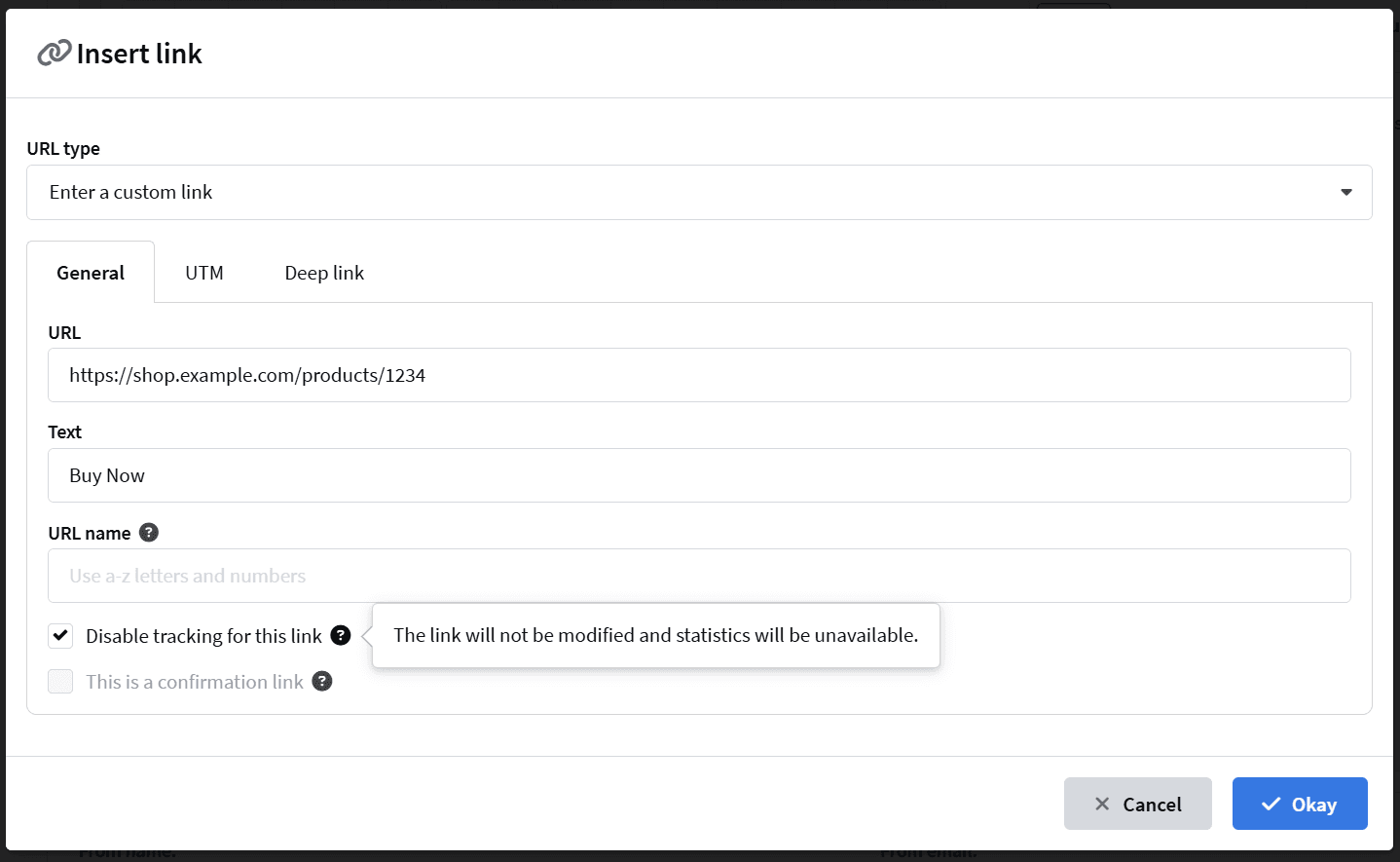
For this reason, deep links are best checked in a test email sent through the same service and with the same click-tracking settings that will be used in the actual campaign.
The device on which the email will be opened should also be taken into account. For example, it may make sense to show a tel: link only at smaller screen widths. For this, CSS media queries can be used.
However, a condition such as max-width: 600px only checks the width of the display area and does not determine the device type. CSS support also depends on the email client. Therefore, an important action should not be available only through an element that appears via a media query.
Overall, before launching a campaign, it is better to test the finished email on the devices and in email clients used by the audience, both with and without the app installed. It is also worth checking that the correct screen opens after the click and that the fallback route works properly.
How to Add a Deep Link to an Email Template in Pixcraft
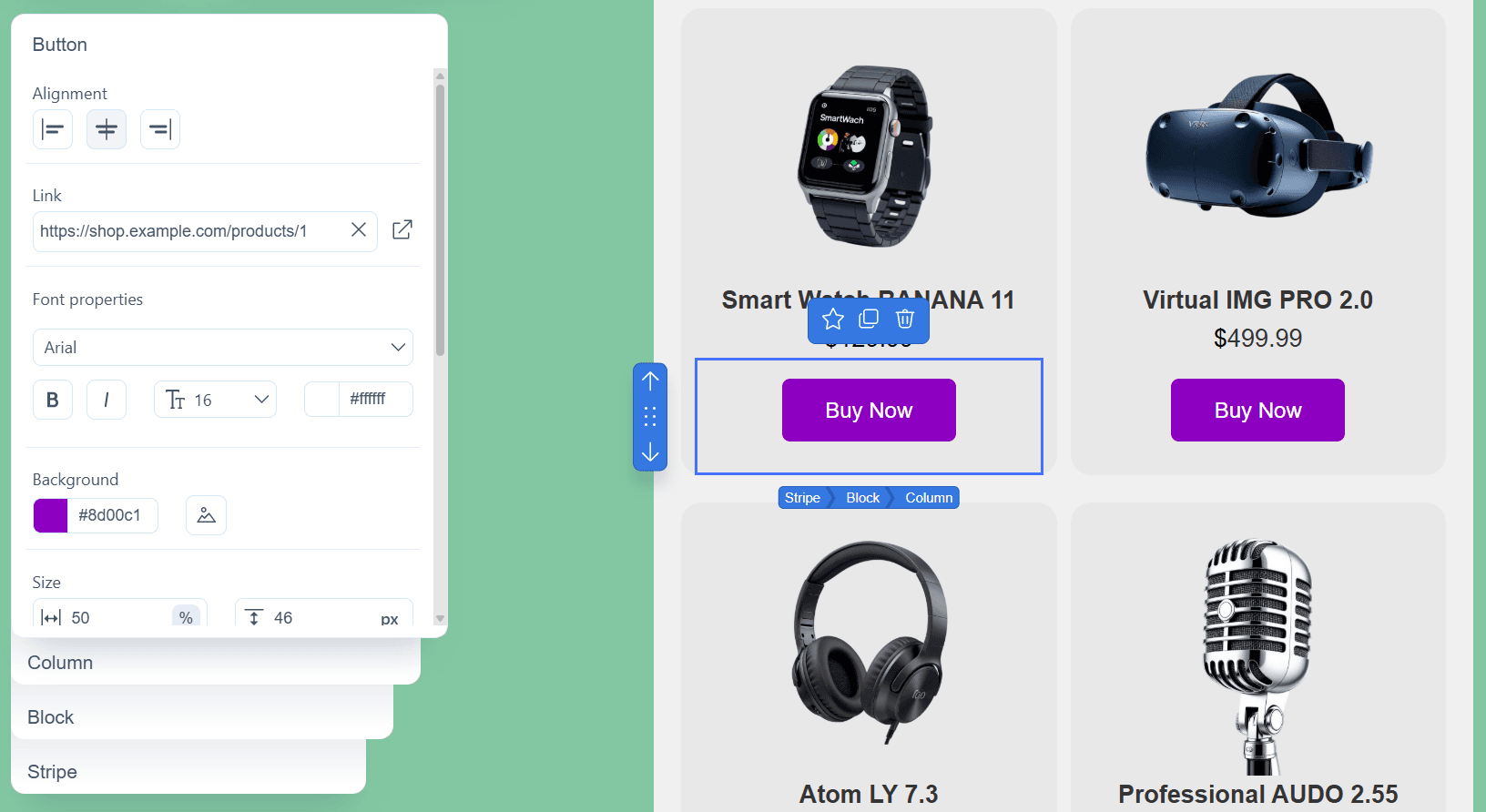
In the Pixcraft email builder, a deep link is added in the same way as a regular link. Simply select the required email element, such as a button, image, or text fragment, and specify the address in its properties.
No separate deep-link configuration is required inside Pixcraft: ready-made links are placed in the email, while their behavior is determined by the settings of the website, mobile app, and user device.
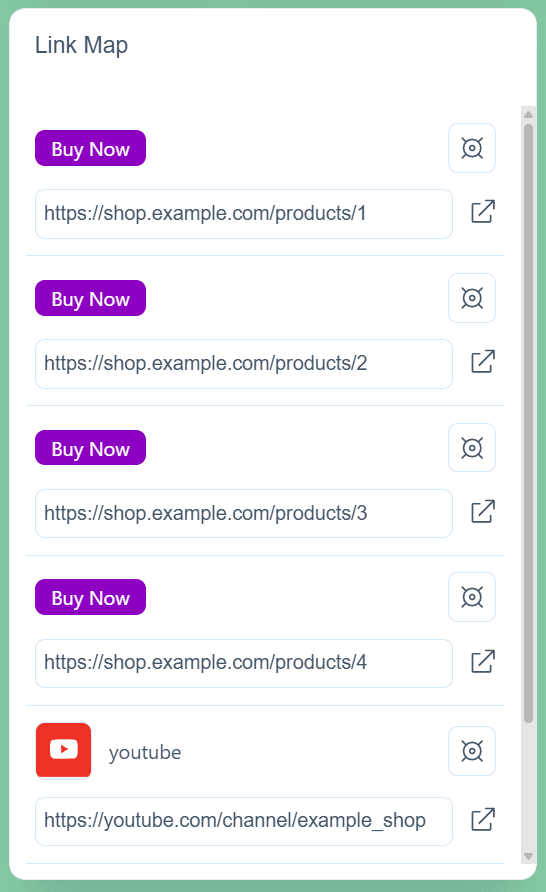
For quick search and replacement of links in an email, use the Link Map. It displays all links in the template: you can easily edit them and quickly find the elements associated with them.
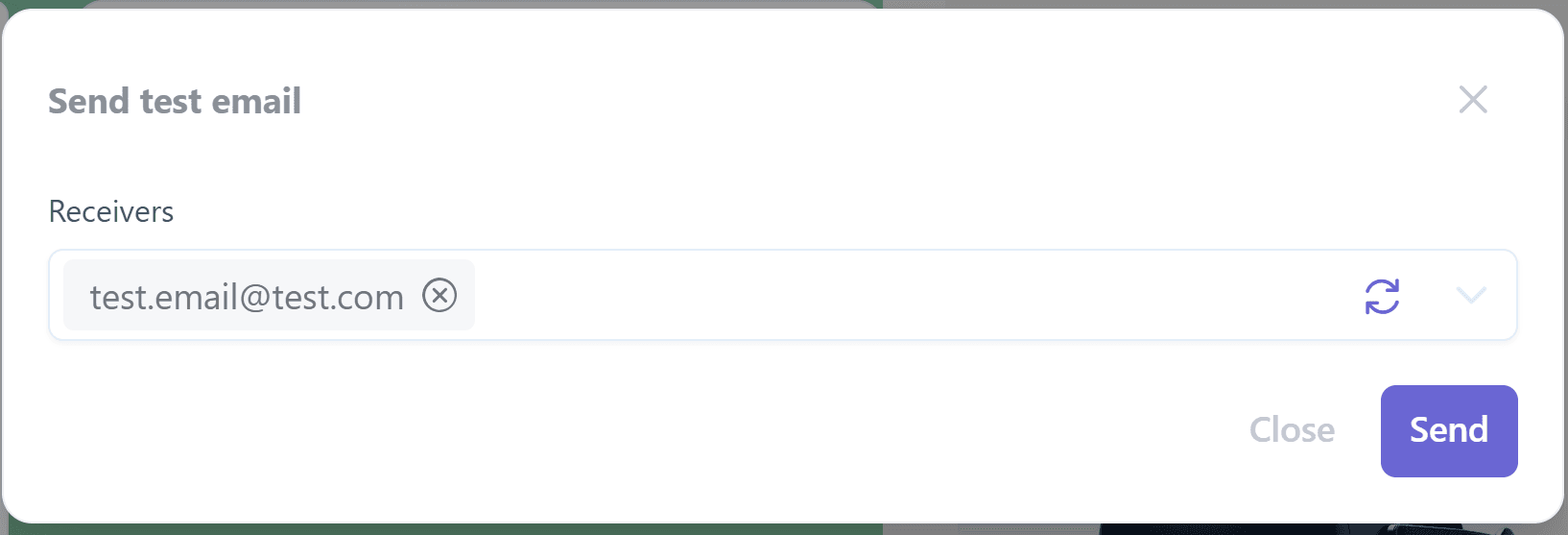
And to check how the template works, including how links behave in a real email client, you can send a test email.
Conclusion
Deep links shorten the path from an email to the required action in an app, but their behavior depends on more than just the URL itself. You need to consider the link type, whether the app is installed, operating system specifics, and how the email service handles the link. Therefore, before launch, it is important to test the entire user journey: from the click in the email to the required screen.